Routes & Policies
Not included in DVARA Open Source.
Earlier releases offered only a static model allow/deny list here; 1.7.0 removed that split.
Routes decide which provider answers a request. Policies decide whether the request is allowed at all. Both are versioned, both propagate live to the data plane without restart, and both support dry-run / shadow modes before going active.
Route configuration
Open Routing → Routes in the sidebar.
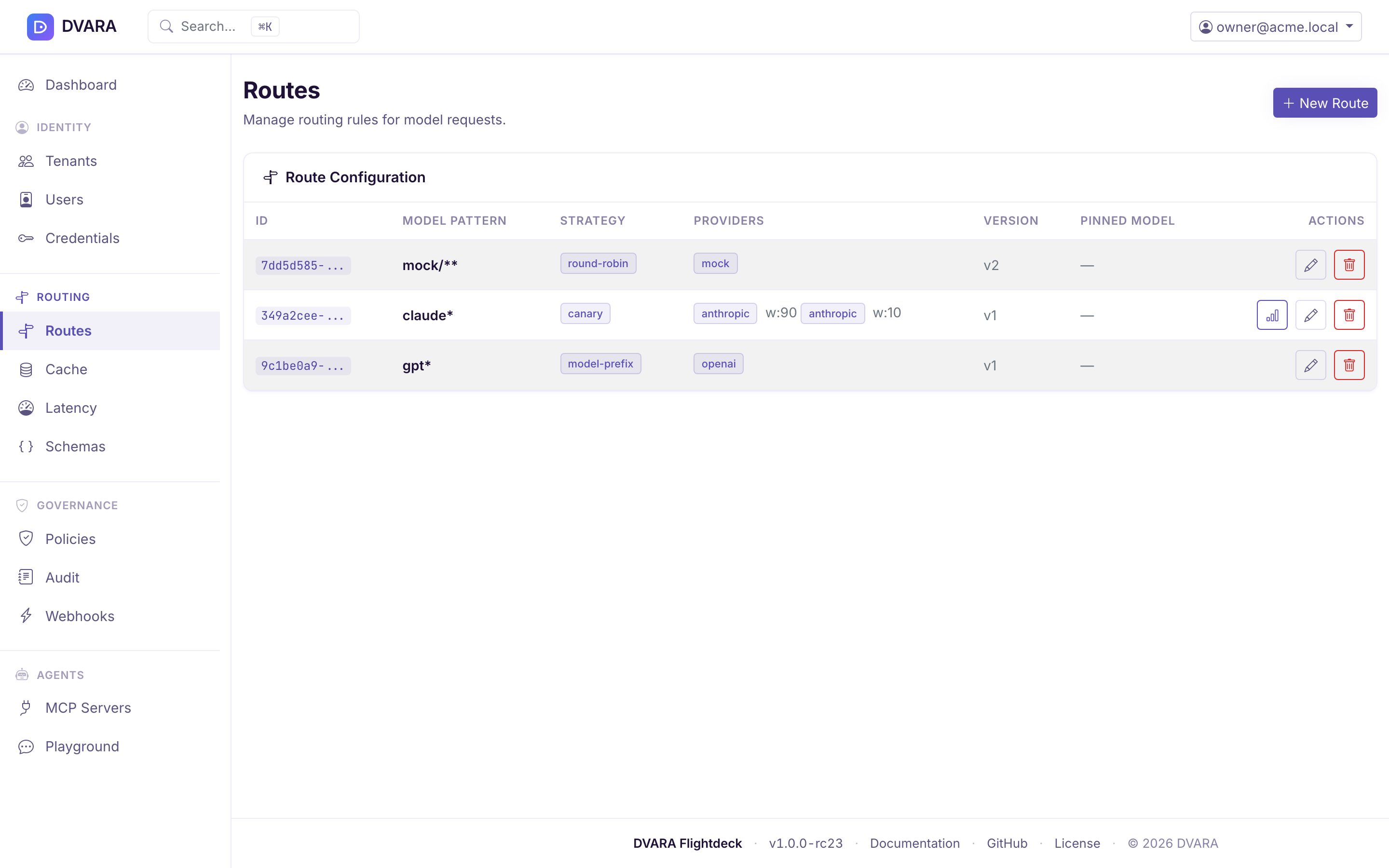
Route list
Lists every route with ID, model pattern, strategy, providers with weights, version, and pinned model version. Auto-refreshes every 10 seconds. Click Edit to open the route editor or Delete to remove a route.
Create / edit route
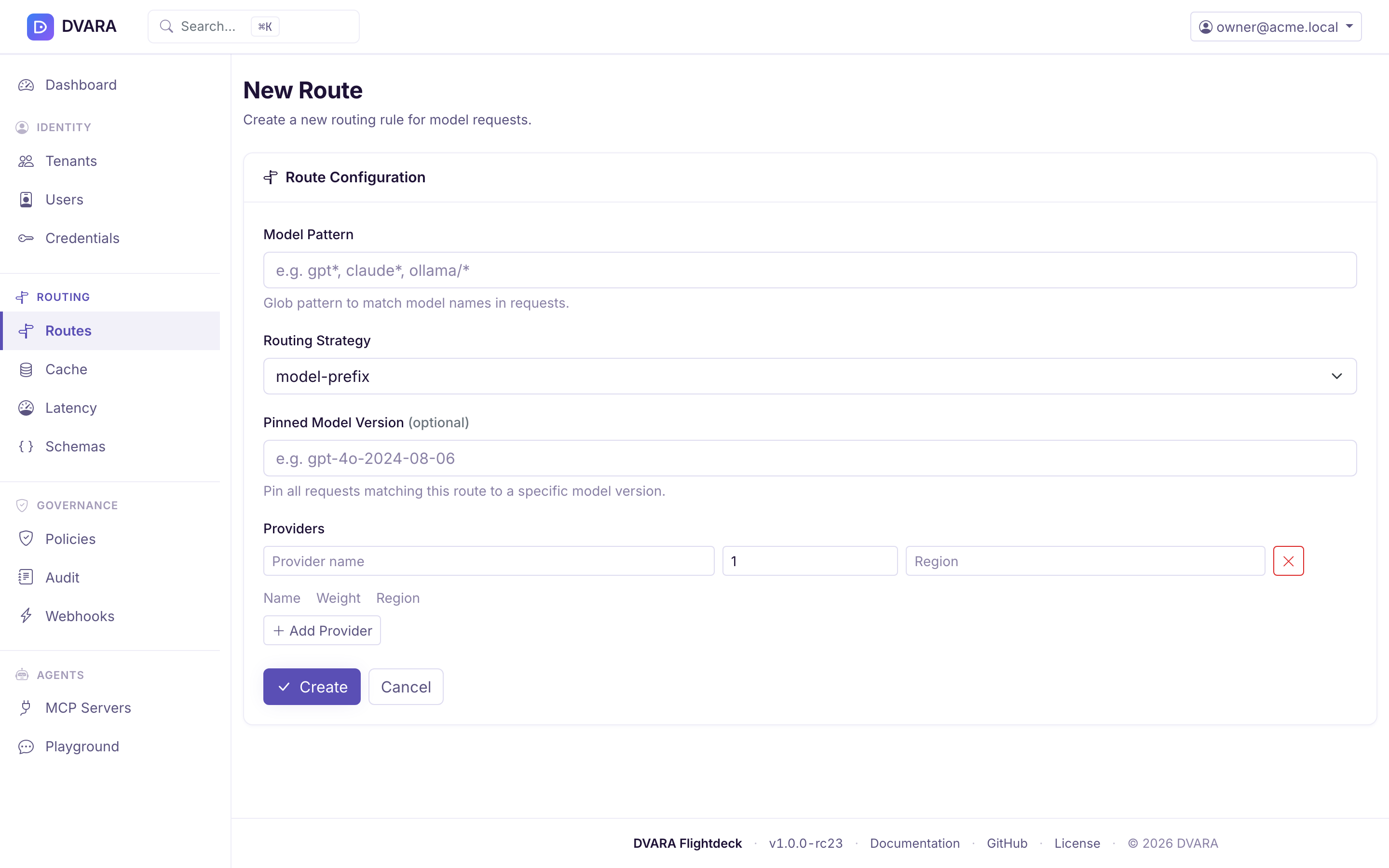
Click New Route to create a route with:
- Model Pattern — glob pattern to match model names (e.g.
gpt*,claude*,ollama/*) - Routing Strategy —
model-prefix,round-robin,weighted,latency-aware,cost-aware,canary,geo-aware,intelligent - Pinned Model Version — optional, pins requests to a specific model version
- Providers — dynamic table of provider entries with name, weight, and region. Add / remove rows as needed.
For several providers, the form previews the effective percentage while you
edit each raw weight. DVARA normalizes positive weights to 100%, so weights 2
and 1 preview as 66.7% and 33.3%. The raw values do not need to add to
100; the preview is the split the router uses.
Changes propagate to every gateway instance within a few seconds — no restart and no deployment required. Routes are platform-global (no workspace scope); policies, by contrast, are workspace-scoped or global (blank workspace = global).
One route per model pattern
From 1.8.4 a model pattern has one route. Routes are platform-global, so this holds across the whole install. Creating a route for a pattern another route already has, editing a route onto such a pattern, or rolling a route back to a version whose pattern another route now has is refused. The message names the route that has the pattern. Patterns are compared with surrounding spaces removed. Before 1.8.4, a second route could be saved for the same pattern, and nothing showed which of the two served the model.
Routes that already shared a pattern before the upgrade are kept, not dropped or changed. At its first 1.8.4 start, Flightdeck lists each such group as a warning in its log and marks every route of the group except the oldest. A marked route can still be edited while it keeps its pattern; give it a new pattern, or delete it, to resolve the duplicate. The GitOps import applies the same rule.
Every route mutation (ROUTE_CREATED / _UPDATED / _ROLLED_BACK / _DELETED) and policy mutation (POLICY_CREATED / _UPDATED / _STATUS_CHANGED / _ROLLED_BACK / _PROMOTED / _DELETED) emits a signed audit event. Workspace roles can change policies only. Changing a canary split emits ROUTE_CANARY_SPLIT_UPDATED; resetting canary or shadow evidence emits ROUTE_CANARY_METRICS_RESET or ROUTE_SHADOW_METRICS_RESET.
Read latency before changing a route
Open Traffic → Latency to compare provider and model aggregates over the last 15 minutes, hour, 6 hours, 24 hours, or all retained samples. Filter by provider or model before changing a latency-aware route. The p50, p95, and p99 summary values are weighted by each aggregate's sample count, rather than treating a route with one observation like a route with thousands.
The table also shows the sample count and freshness used by latency-aware routing. An aggregate becomes routable after the configured minimum number of samples and becomes stale after the configured decay interval.
Version history
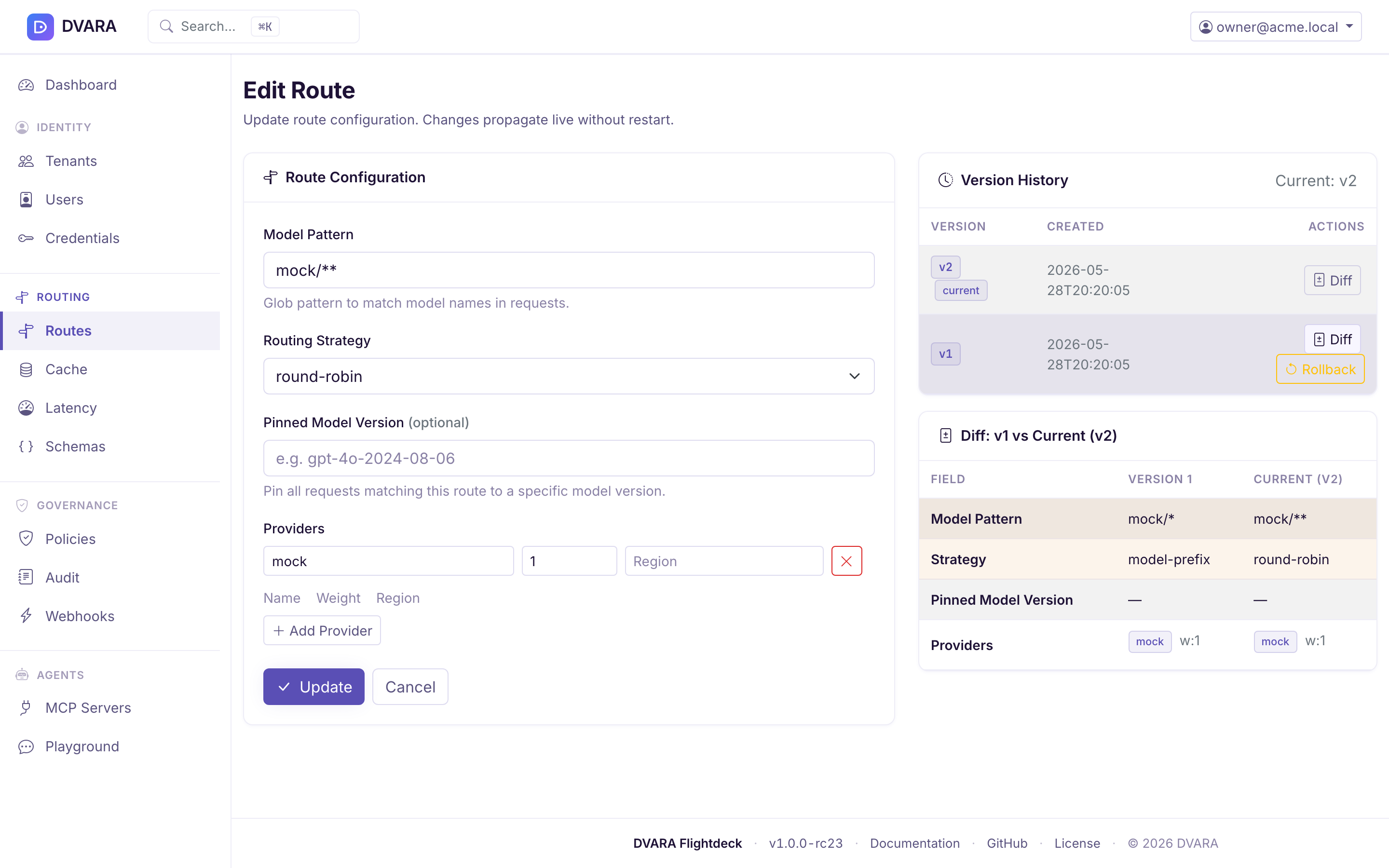
In edit mode, the right panel shows the route's version history (last 10 retained). Each version has two actions:
- Diff — loads a field-by-field comparison between the selected version and the current configuration. Changed fields are highlighted with an amber background.
- Rollback — rolls back the route to the selected version (creates a new version with the restored configuration). Requires confirmation.
Canary A/B testing
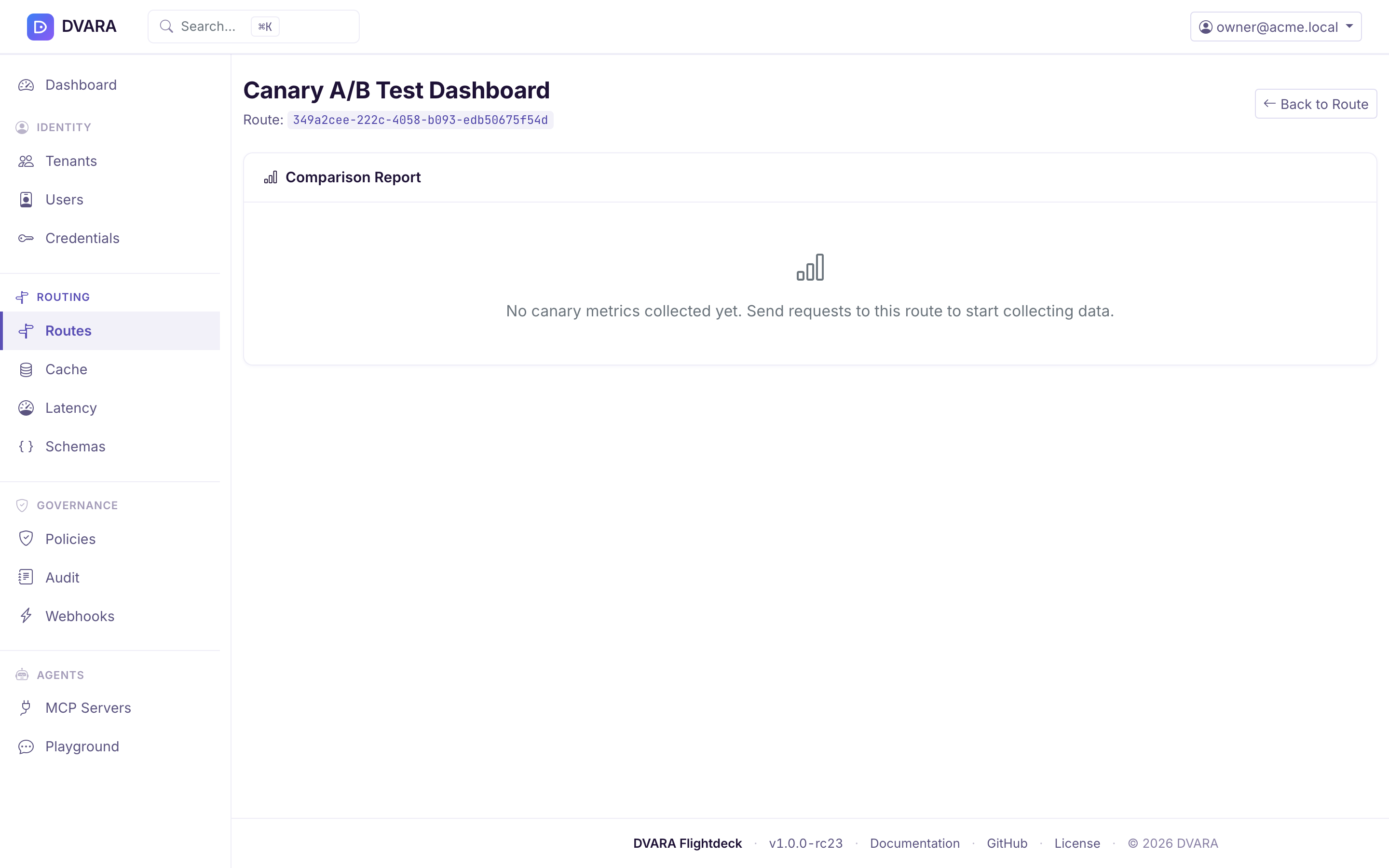
The comparison report names its sample window and sample count and labels confidence as low, medium, or high. It also warns when the report timestamp is stale. Because polling pauses in a hidden browser tab, return to the tab and wait for the timestamp to advance before treating a stale warning as a Gateway telemetry problem.
When a route uses the canary strategy, a dedicated canary dashboard is available at Routes > (route) > Canary.
Dashboard features:
- Canary configuration — baseline provider, candidate provider, current split percentage, and workspace scope
- Live metrics (auto-refreshes every 5 seconds) — side-by-side comparison of baseline vs. candidate:
- Request count
- Error count and error rate
- Total and average latency
- Total and average cost
- Split adjustment — update the traffic split percentage on the live route without restarting. The change creates a route version and records the previous and new percentages in
ROUTE_CANARY_SPLIT_UPDATED. - Reset — clear all canary metrics and start fresh. The reset writes
ROUTE_CANARY_METRICS_RESET.
Canary and shadow metrics are persisted and survive pod restarts, deployments, and autoscaling events. Counters are aggregated cluster-wide — the dashboard shows a single combined view across every gateway instance, not a per-pod slice. Deleting a route cleans up its live metrics automatically.
Route shadow dashboard
The shadow report uses the same sample-window, sample-count, confidence, and staleness signals as the canary report. Review those signals before deciding that the shadow route is safe to promote.
Shadow sends a copy of live traffic to a second provider without serving its response, so you can compare a candidate against production on real requests. Routes → (route) → Shadow reports the comparison and offers a Reset; the report fragment polls every 5s. Resetting the evidence writes ROUTE_SHADOW_METRICS_RESET.
Shadow is a property of a route, not a strategy — the route form carries shadowConfig under any strategy, alongside modelTiers (revealed for intelligent), and offers geo-aware and intelligent as strategies.
Before 1.7.0 an edit rebuilt the route from the form, so any field the form did not render was destroyed on save — shadowConfig among them. The save succeeded, the rendered fields were right, and sampling silently stopped. An edit now mutates the loaded route, so a field the form does not show is preserved rather than dropped.
If you configured shadow before 1.7.0 and later edited that route from Flightdeck, check the shadow config is still there.
Policy management
Open Governance → Policies in the sidebar.
Policy list
Lists every policy with ID, name, workspace, status badge (DRAFT / ACTIVE / SHADOW / ARCHIVED), version, and last updated timestamp. Auto-refreshes every 10 seconds.
Use the Workspace dropdown filter to narrow the list. Status badges are color-coded: blue for DRAFT, green for ACTIVE, purple for SHADOW, grey for ARCHIVED.
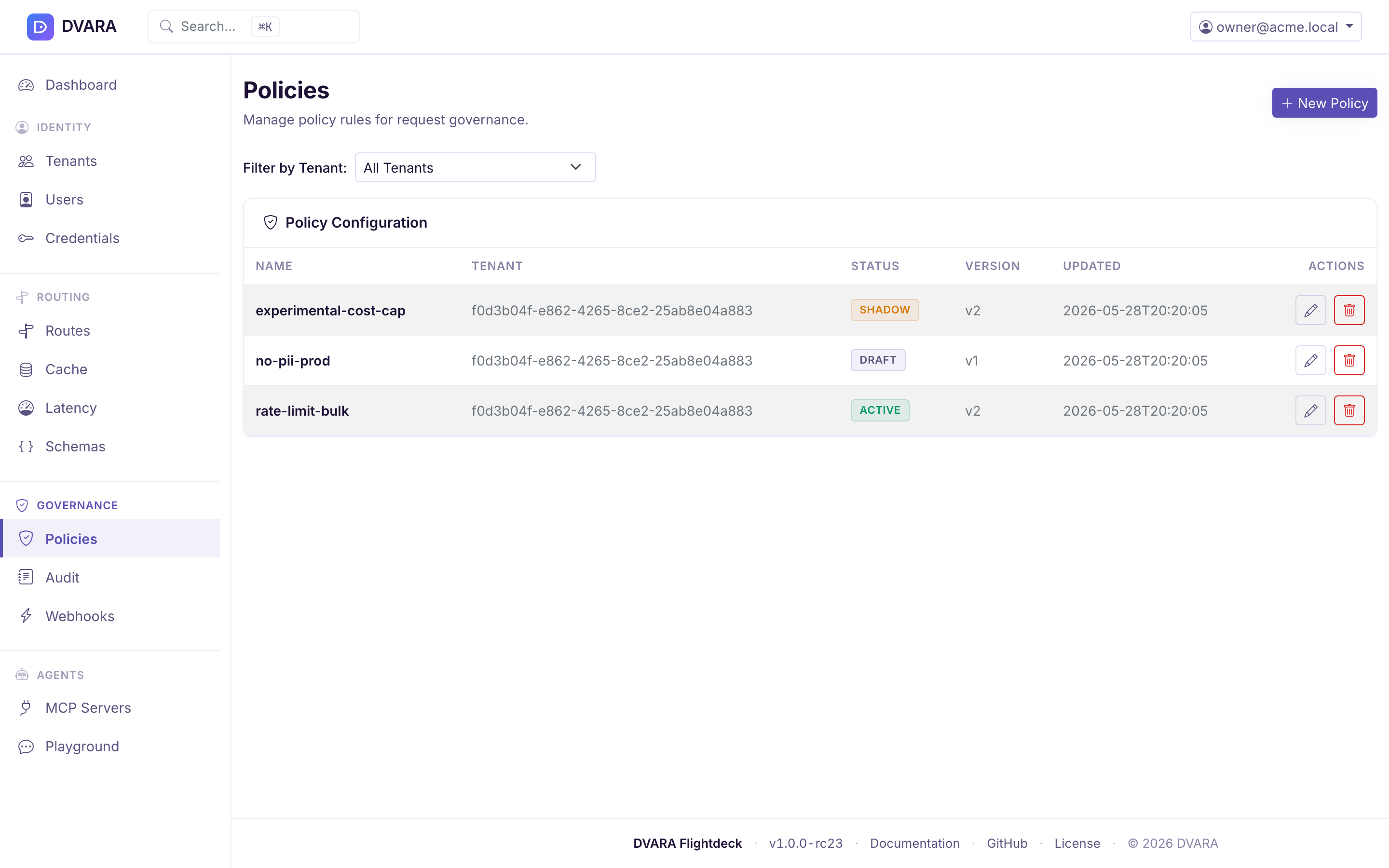
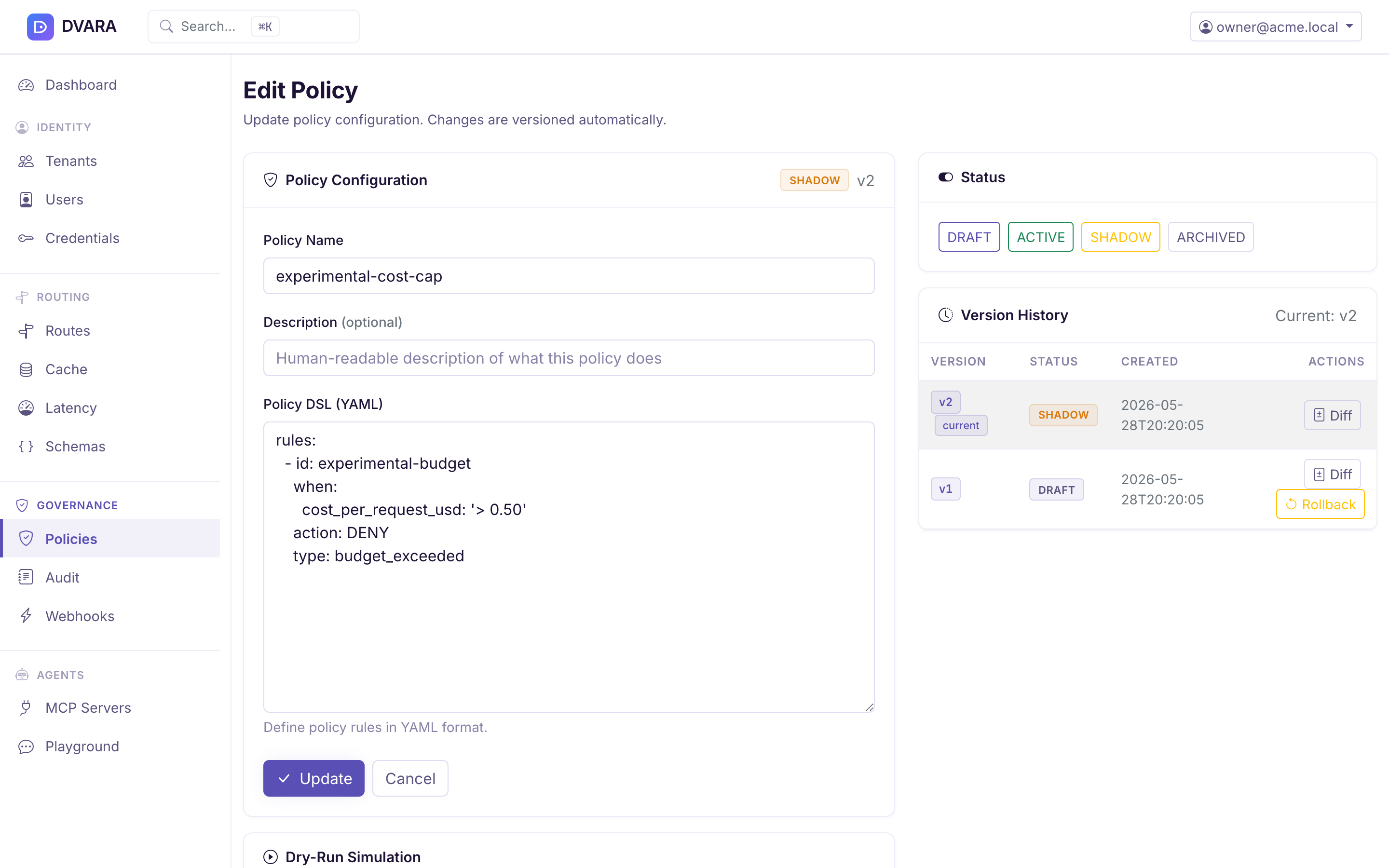
Create / edit policy
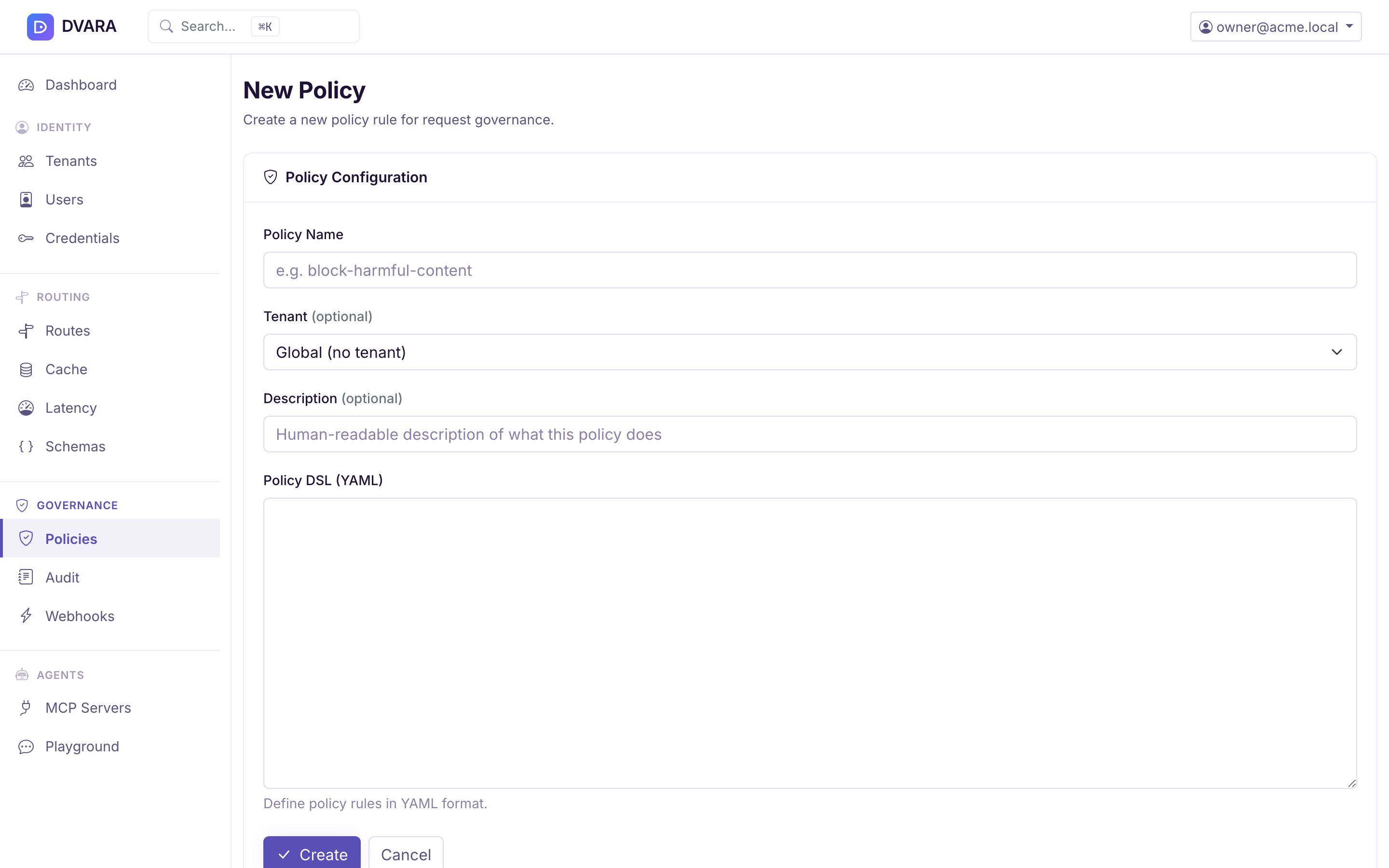
Click New Policy to create a policy with:
- Name — human-readable policy name
- Workspace ID — scope to a workspace (blank = global)
- DSL — YAML policy rules, edited in an in-browser YAML editor with syntax highlighting
- Status — lifecycle status (
DRAFT,ACTIVE,SHADOW,ARCHIVED)
In edit mode, the right panel shows:
- Version History — same diff and rollback functionality as routes
- Status Changes — change the policy lifecycle status
- Dry-Run — simulate the policy against a sample request and see the decision plus timing
Validate the DSL before saving
The YAML is compiled and validated before the policy is persisted. An invalid submission keeps the editor open and shows Failed to create policy: … or Failed to update policy: …, followed by a compiler message that points to the rule and offending key. The invalid policy is not saved.
- Unknown keys. Anything that isn't a recognised top-level / rule / condition key — including typos like
condition:(singular) and non-existent fields likeworkspace:as a per-rule condition — is rejected with a hint at the correct shape. The DSL is closed-schema; YAML comments use#as usual but extra unknown keys are not silently absorbed. - Unknown rule actions. Rules accept exactly two actions:
DENYandWARN_AGENT(case-insensitive). Typos likeaction: warn(silently fell through to DENY before) oraction: shadow(a customer reaching for a per-rule shadow that isn't a real product feature) are rejected with a pointer at the policy-lifecycleSHADOWstatus — see Shadow policy dashboard below. - Conflict detection at activation. When you flip a policy from
DRAFTtoACTIVEor promote a Shadow policy, the conflict detector checks the candidate against active closed-form policies. Flightdeck displays an advisory warning that names the overlap. The policy still activates, so resolve the warning by adjusting the conditions or priority and archiving the replaced policy after verification.
Use the policy condition reference for every supported YAML shape, its missing-value behaviour, and complete request-to-audit examples.
Order platform and workspace policies
Platform-wide policies (no workspace) and a workspace's own policies are merged into one list and sorted by rule priority alone. Scope is not part of the ordering:
- Lower priority number evaluates first. The first matching
DENYreturns immediately;WARN_AGENTcollects and continues; no match means allowed. - A workspace rule can therefore pre-empt a platform rule. A workspace rule at priority 10 is evaluated before a platform rule at priority 50, and if it denies, the platform rule is never reached. Platform scope confers no inherent precedence — if you need a platform rule to win, give it a lower priority number than any workspace rule can use.
WARN_AGENTis never "overridden". It is not a decision, so nothing later cancels it; warnings from either scope accumulate, set the response warning header, and write audit evidence.
Two rules with the same priority number are ordered by a stable sort over a list that happens to be built platform-first — so platform currently wins a tie. That is a property of the current implementation, not a documented guarantee. Do not design a hierarchy that depends on it; give rules distinct priorities where the order matters.
Use CEL for patterns closed-form matchers cannot compose
For patterns the closed-form conditions: matchers above can't express — anything that needs OR, NOT, or arithmetic across fields — a rule can use a per-rule expression: field instead of conditions:. The value is a CEL (Common Expression Language) string compiled and type-checked at submit time. CEL is the sandboxed expression language Kubernetes admission policies, Envoy, Cilium, and gRPC use for the same problem class — no I/O, no host calls, no loops, deterministic, halting-decidable.
rules:
  - id: gpt4o-outside-eu-or-large-requests
    expression: |
      request.model == "gpt-4o" &&
      (context.region != "EU" || request.message_count >= 50)
    action: DENY
    deny_message: "gpt-4o restricted outside EU or for ≥ 50 messages"
That single rule covers a pattern that would otherwise require three separate conditions: rules.
expression: and conditions: are mutually exclusive on the same rule — specifying both fails the submit; specifying neither also fails (a matcher-less rule is almost certainly an authoring mistake). Mixing rule kinds within the same policy is fine — author whichever shape fits each rule.
Evaluation context (closed surface): request.{model, workspace_id, message_count, total_input_chars, metadata[key]}, context.{region, workspace_region}, budget.utilization_pct, plus the CEL standard library (string methods in receiver form — s.startsWith(t), s.contains(t), s.matches(regex) — list/map indexing, in, comprehensions). Two CEL-API notes worth keeping in mind while authoring: (a) every request.* / context.* / budget.* field is declared as Dyn at the type-checker level so the surface can evolve without breaking compiled policies — cast with string(...) before calling string methods (string(request.model).matches("^gpt-.*$"), not matches(request.model, "...")); (b) the embedded CEL library only registers receiver-style overloads for the string methods, so matches(s, regex) fails to compile and s.matches(regex) is the working shape. Temporal functions (now(), hour(ts, tz)) are not in v1 — for time-of-day deny windows use the existing conditions: { time_of_day: ... } matcher.
Static conflict detection is skipped for CEL rules — equivalence between arbitrary CEL expressions is undecidable in general. The promotion action displays one "skipped — verify manually" warning per CEL rule on the candidate policy; non-CEL rules in the same policy still receive closed-form conflict checks.
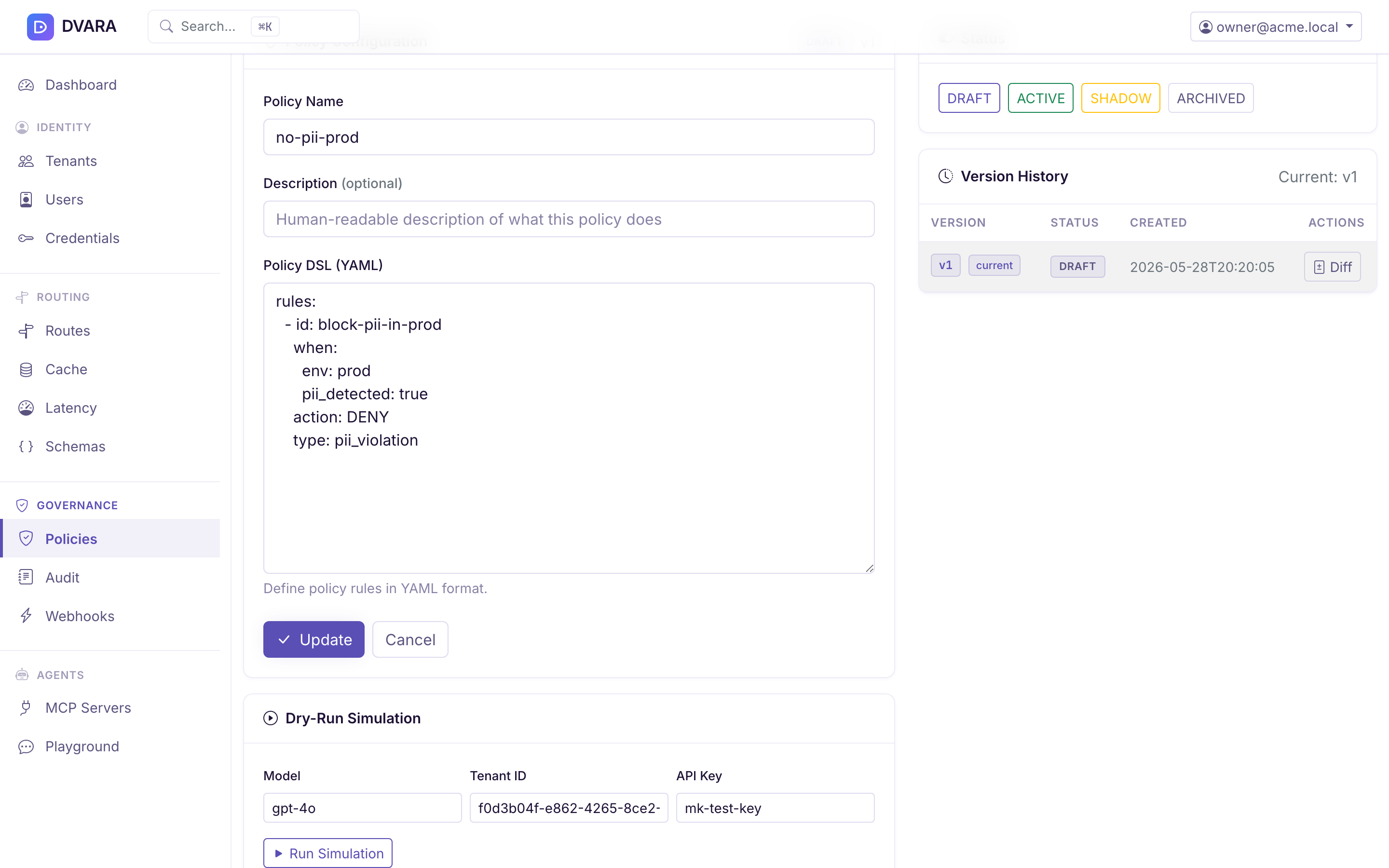
The dry-run panel supplies a model, workspace ID, API key, and one synthetic user message. It does not call a provider or store the synthetic request. Use it for model rules and CEL expressions based on those inputs. It cannot reproduce max_tokens, offered tools, runtime time or region, budget utilization, or MCP context; evaluate those conditions with representative traffic in Shadow.
Shadow policy dashboard
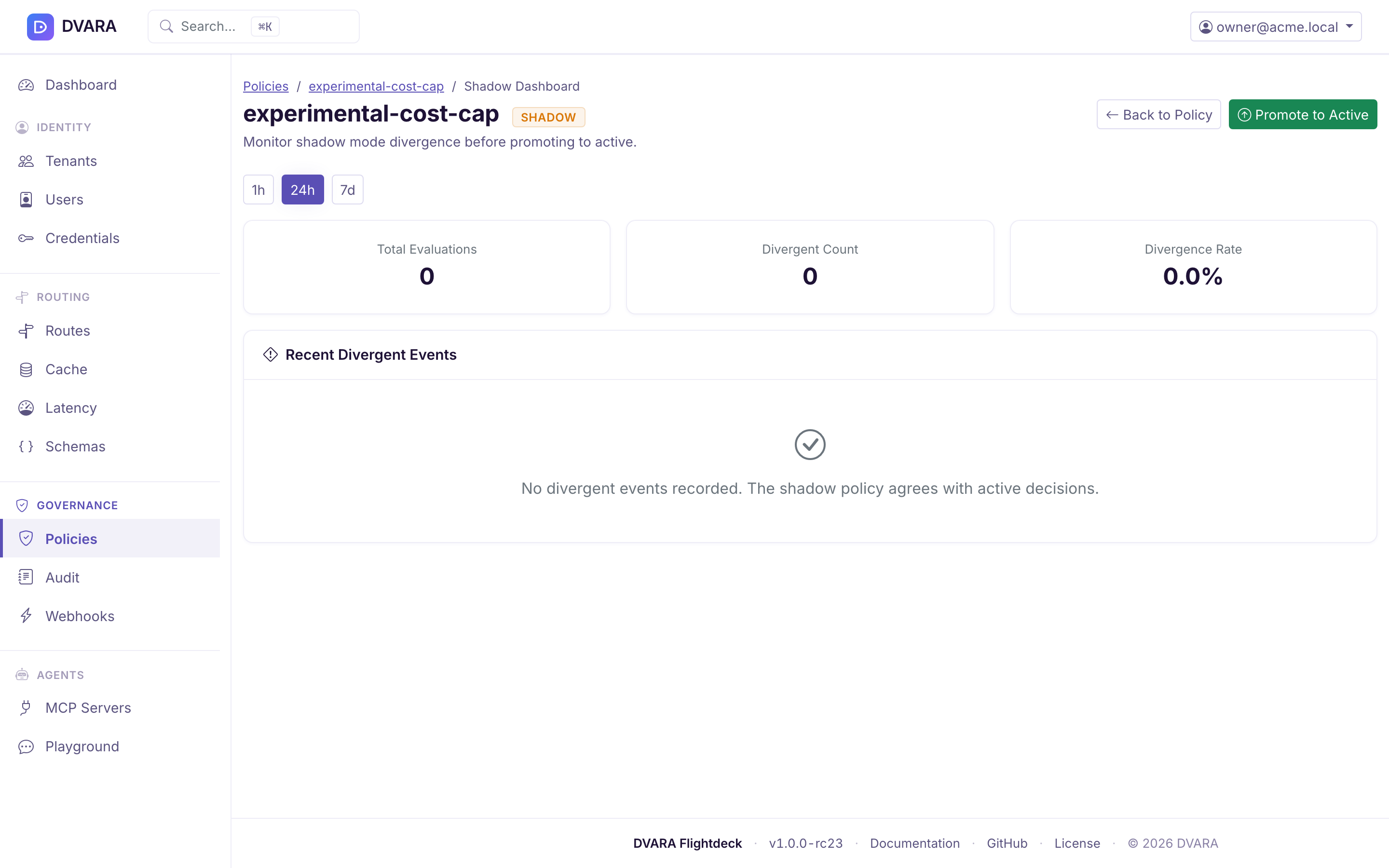
When a policy is in SHADOW status, a dedicated shadow dashboard monitors divergence between the shadow and currently-active policy decisions without affecting real traffic.
Accessing the dashboard:
- From the policies list: click the eye icon next to any SHADOW-status policy
- From the policy editor: click View Shadow Dashboard in the status panel
Dashboard features:
- Period Selector — toggle between 1 h, 24 h, and 7 d time windows
- Stats Panel (auto-refreshes every 5 seconds) — three cards:
- Total Evaluations — number of times the shadow policy was evaluated
- Divergent Count — times shadow would have denied when active allowed
- Divergence Rate — percentage of evaluations that diverged
- Rule Breakdown Table — divergence counts grouped by rule ID
- Recent Divergent Events Table — latest divergent events with timestamp, request ID, model, workspace, active decision, and shadow decision
Rolling back to version 1 does not return the policy to version 1. It writes version 1's content as a new version — roll back from v2 and you land on v3 carrying v1's rules, with snapshots 1, 2 and 3 all retained.
That is the useful behaviour: the history is append-only, so a rollback is itself auditable and can be rolled back in turn. Verified on 1.7.0.
A policy created outside Flightdeck cannot be rolled back to its first version. The first snapshot is written by the create path, so a policy inserted another way has no version 1 to restore — the rollback redirects with a flash error and changes nothing, which is easy to misread as rollback being broken.
Promoting a shadow policy
Click Promote to Active, review the exact policy version, enter a reason, and submit it for approval. A different policy manager opens Governance → Approvals and makes the decision. Approval itself transitions the reviewed version from SHADOW to ACTIVE; the requester does not return for another execution step.
Flightdeck requires both people to have signed in within the last 10 minutes, and the request expires after 15 minutes. At approval, Flightdeck:
- Confirms that the policy is still the version the approver reviewed.
- Validates the policy and runs conflict detection against existing active policies.
- Changes the policy status to ACTIVE and clears its shadow event data.
If the policy changed after the request, Flightdeck refuses activation. Review the current version and submit a new request. See Govern sensitive changes with approvals for the reason behind each safeguard and the evidence it records.
This action promotes a policy from SHADOW to ACTIVE within the workspace it already belongs to. It does not copy anything anywhere. If what you want is author in a development workspace, then apply the same rule in production, that is the next section — there is no button for it.
Promoting a policy to another workspace
There is no in-product action that copies a policy from one workspace to another. The supported route is the GitOps export → edit → import cycle on the Import / Export page, which is also what makes the promotion reviewable — the thing you apply to production is a file you can diff and commit.
- Export from
/config/export, scoped to the source workspace or fleet-wide. - Edit the policy entry in the exported JSON: give it a new
idand setworkspaceIdto the target workspace. Keep thedslbyte-identical — that is the whole point of the exercise. - Preview the file at
/config/import. The diff names each entity it will create, and nothing is written until you apply. - Apply. Use
mergemode, which upserts and never deletes.
Trimming the export down to just the policies you are promoting is fine and is the easier file to review:
{
  "version": "1.0",
  "policies": [
    {
      "id": "policy-no-expensive-prod",
      "workspaceId": "ws-production",
      "name": "No expensive model",
      "status": "ACTIVE",
      "dsl": "version: \"1\"\nrules:\n  - id: no-expensive-model\n    conditions:\n      model:\n        denylist: [gpt-4o-expensive]\n    action: DENY\n"
    }
  ]
}
Four things worth knowing, all measured on 1.7.0:
- It is a copy, not a move. The source policy is untouched and stays active in its own workspace — which is what you want when the source is a development workspace you will keep iterating in.
- The
idmust be new. Ids are global, not per-workspace, so reusing the source id updates the source policy instead of creating one in the target. That ismergemode doing exactly what it says, and it is the mistake to avoid. statusis carried across, so a policy exported asACTIVEarrives enforcing. Export it asSHADOWinstead if you want to observe divergence in the target workspace before it blocks anything.- The imported policy gets a proper version-1 snapshot, so version history and rollback work on it normally. (Policies inserted straight into the database — by a seeding script, say — do not get one, and their rollback silently does nothing.)
Allow up to a poll interval before the new policy is enforced; config reaches the data plane through the version poller, not immediately on commit.
Output schemas
Structured-output JSON schemas that clients reference by ID (instead of sending inline on every request) live under Routing → Schemas in the sidebar (owner and policy-admin only). The page lists every registered schema with its scope (route id, model pattern, or both) and provides a create / edit form with a JSON-schema textarea plus a delete action behind a confirm gate. Schemas are also carried in Flightdeck GitOps export for pipelines that prefer to keep them in source control next to the apps that consume them.
Before saving, paste a representative JSON response into Validate sample. Flightdeck compiles the draft as JSON Schema Draft 7 and validates the sample without creating or changing a schema. A success means that sample matches; failures identify the instance location and validation message. Saving still requires a route ID, a model pattern, or both, so the schema has an effective scope.
See Structured Outputs → Inline schema vs. registered schema for when to register a schema. Manage registered schemas from the platform-wide workflow or carry them in a reviewed GitOps export; the former Automation API was removed in 1.7.0.