Run the Enterprise platform locally
DVARA Enterprise is the centrally managed form of the DVARA AI governance platform. This quickstart starts the DVARA Gateway, Flightdeck, and PostgreSQL on your machine, then walks through a governed model request and its audit record.
The stack runs in the Development posture without a licence key. Every feature runs, including the MCP and A2A planes, for non-production use within 3 workspaces and 100,000 governed calls a month. A valid licence removes those limits and grants production rights and support. This quickstart uses the LLM governance path.
Prerequisites
1. Download the example
Clone the examples repository:
git clone --depth 1 https://github.com/dvarahq/dvara-examples.git
cd dvara-examples/docker-compose/quick-start
This stack starts PostgreSQL, the DVARA Gateway on port 8080, and Flightdeck
on port 8090. From 1.8.2 only Flightdeck connects to PostgreSQL. The Gateway
has no database: it enrols with Flightdeck, gets its configuration from it, and
sends its audit and usage records back through a spool on the gateway-data
volume. See How the gateway runs without a database.
Pin the DVARA images to 1.8.5. Create docker-compose.override.yml beside the
Compose file; Compose reads it automatically:
services:
  dvara-flightdeck:
    image: ghcr.io/dvarahq/dvara-flightdeck:1.8.5
  dvara-gateway:
    image: ghcr.io/dvarahq/dvara-gateway:1.8.5
Run the same version on both services.
2. Configure the stack
Copy the supplied environment file:
cp .env.example .env
Generate six separate secrets. Run this command once for each secret:
openssl rand -base64 32
Open .env and replace its placeholders:
DVARA_LICENSE_KEY=
DVARA_ENROLMENT_SECRET=<generated-secret>
DVARA_ENCRYPTION_MASTER_PASSWORD=<generated-secret>
DVARA_ACTUATOR_API_KEY=<generated-secret>
DVARA_AUDIT_HMAC_SECRET=<generated-secret>
DVARA_PII_TOKEN_ENCRYPTION_MASTER_PASSWORD=<generated-secret>
DVARA_ACTUATOR_METRICS_API_KEY=<different-generated-secret>
OPENAI_API_KEY=<your-openai-api-key>
DB_PASSWORD=dvara
Use a different value for every generated secret. From 1.8.2
DVARA_ENROLMENT_SECRET is required: the Gateway enrols with Flightdeck by it,
and Compose refuses to start without it. Leave DVARA_LICENSE_KEY empty for
this Development deployment. To add a licence later, paste it on Flightdeck's
License page. Keep .env out of version control.
3. Start DVARA
Pull the pinned images and start the stack:
docker compose pull
docker compose up -d
Check the containers:
docker compose ps
Wait until postgres, dvara-gateway, and dvara-flightdeck report a healthy
status. Flightdeck starts first; the Gateway starts once it has enrolled with
Flightdeck, so allow a minute on the first run. Then check the Gateway:
curl -s http://localhost:8080/actuator/health
A ready Gateway returns a response whose status is UP.
The Compose file pins the DVARA services to linux/amd64. Docker Desktop
runs them through emulation on Apple Silicon. Startup can take longer, but you
do not need to change the Compose file.
4. Create the owner and workspace
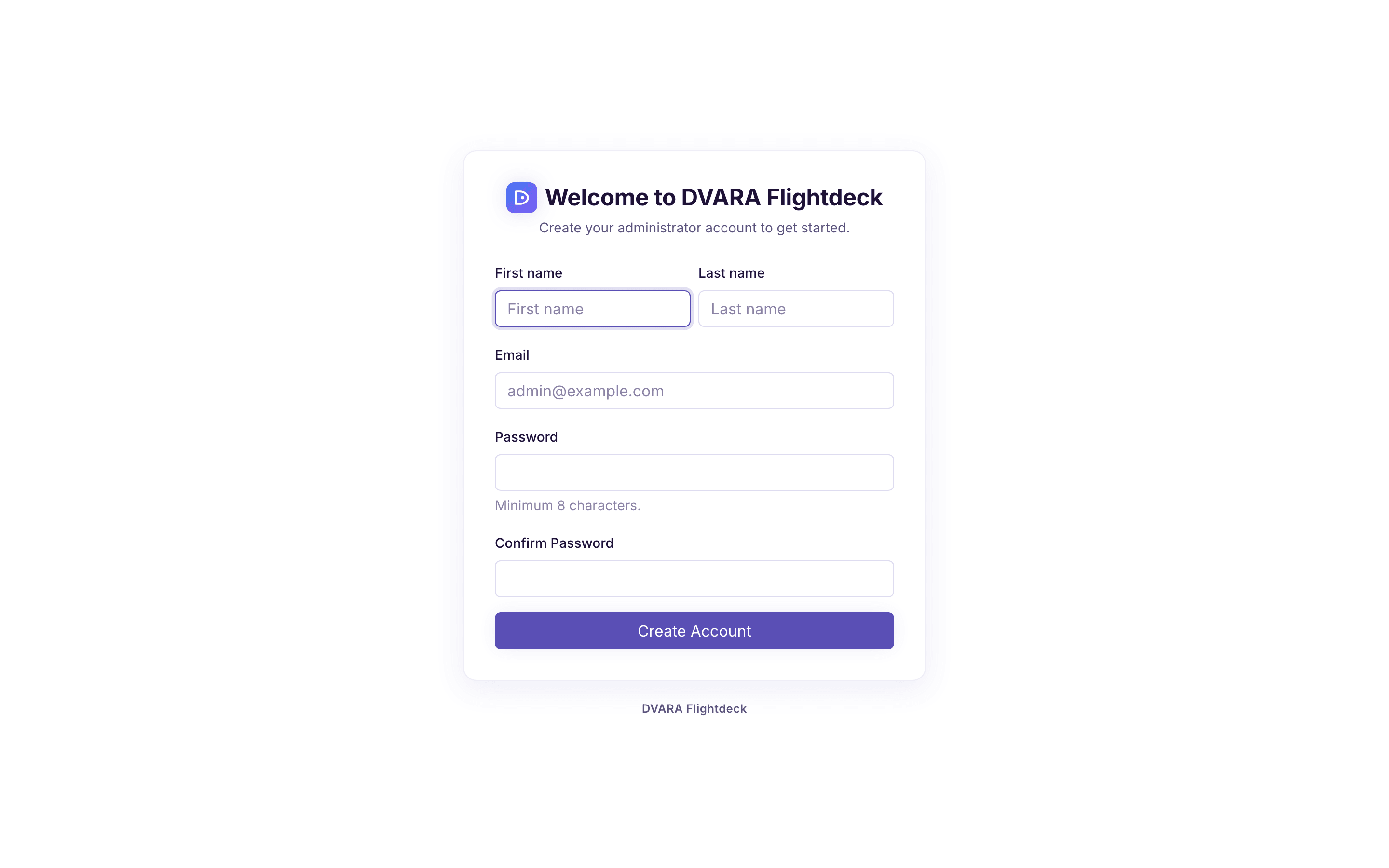
Open http://localhost:8090. On the first visit,
Flightdeck opens /setup. Create the initial owner account, then sign in.
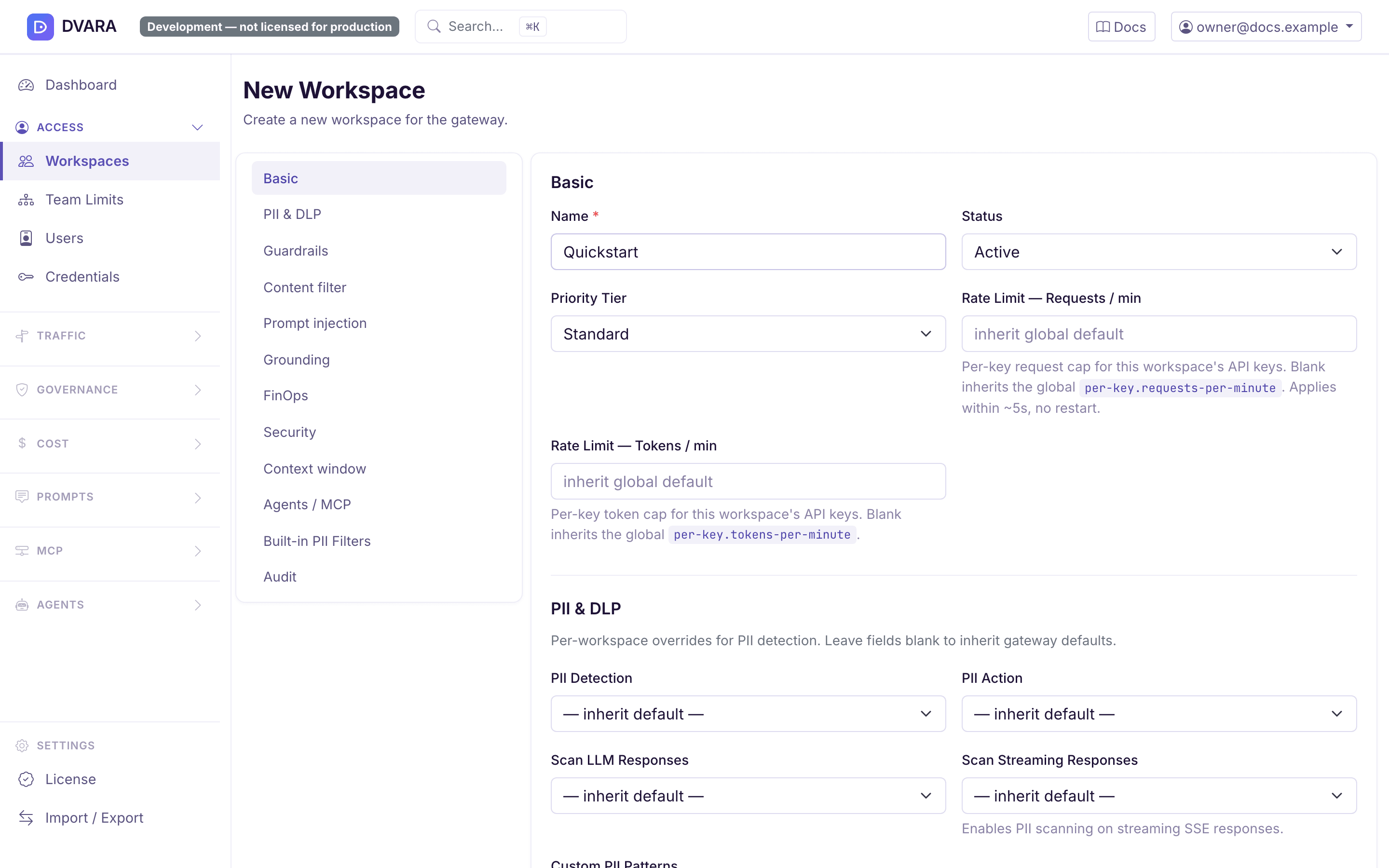
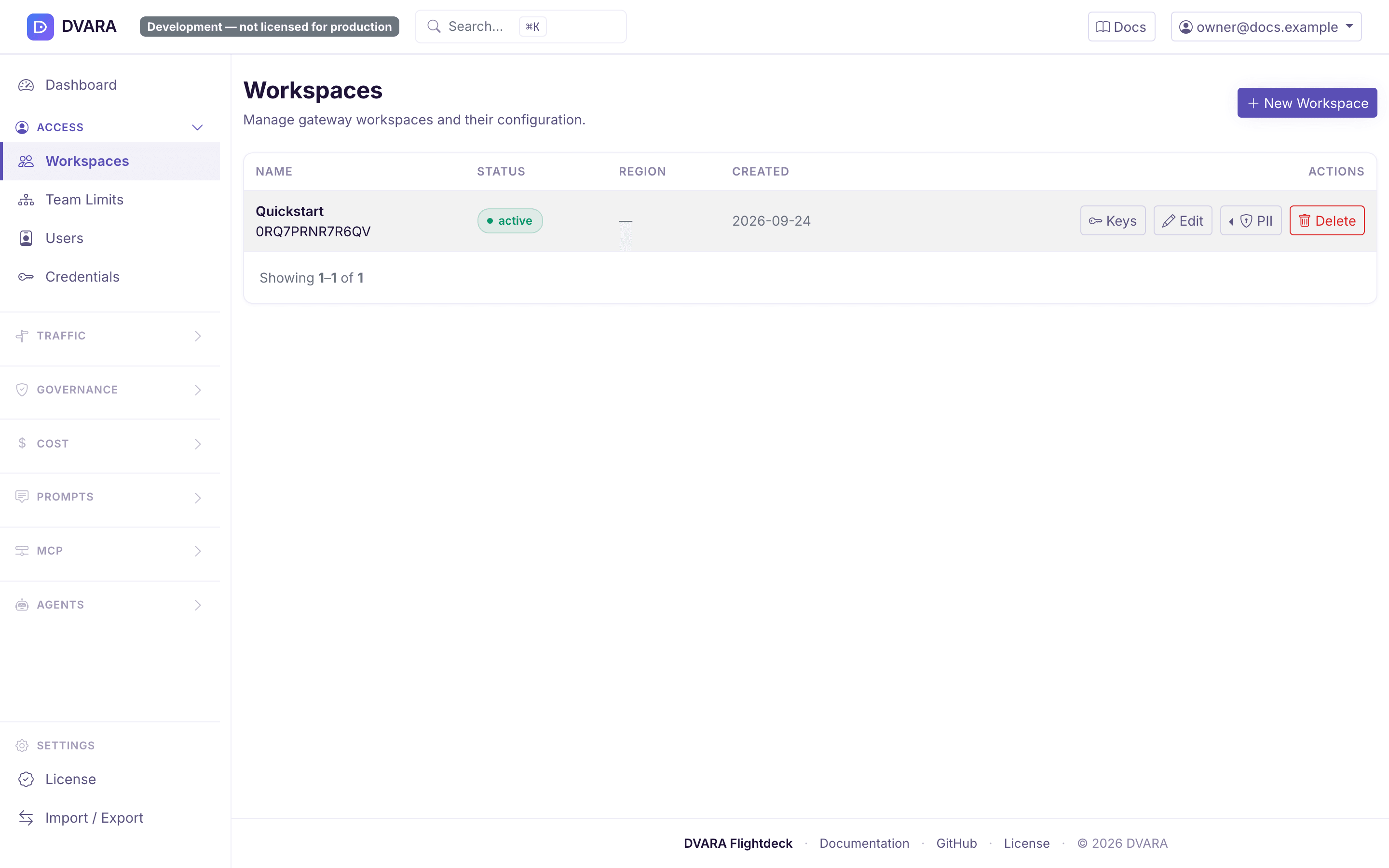
Create the workspace that owns the quickstart request:
- Open Workspaces and select Create Workspace.
- Name it
Quickstartand keep the default status and region. - Open the new workspace and select API Keys.
- Create a key named
quickstart-key. Leave the scopes empty for this test. - Copy the generated
gw_...key. Flightdeck shows it only once.
Save the key in the terminal that will send the request:
export DVARA_API_KEY='gw_<the-key-copied-from-flightdeck>'
Every /v1 request requires a DVARA API key. The key selects the workspace
whose policies, data controls, limits, and audit attribution apply.
5. Send a governed request
Send an OpenAI-compatible Chat Completions request to the DVARA Gateway:
curl -sS http://localhost:8080/v1/chat/completions \
  -H "Authorization: Bearer $DVARA_API_KEY" \
  -H 'Content-Type: application/json' \
  -d '{
    "model": "gpt-4o-mini",
    "messages": [
      {"role": "user", "content": "Why does runtime AI governance matter?"}
    ]
  }'
A successful response follows the OpenAI Chat Completions shape:
{
  "id": "chatcmpl-abc123",
  "object": "chat.completion",
  "model": "gpt-4o-mini",
  "choices": [
    {
      "index": 0,
      "message": {
        "role": "assistant",
        "content": "Runtime governance applies controls while AI requests are being handled."
      },
      "finish_reason": "stop"
    }
  ],
  "usage": {
    "prompt_tokens": 13,
    "completion_tokens": 11,
    "total_tokens": 24
  }
}
The response text, identifiers, and token counts depend on the provider.
6. Verify the result in Flightdeck
Return to Flightdeck after the request completes:
- Open Dashboard and confirm that the request is attributed to the
Quickstartworkspace. - Open Audit and find its
GATEWAY_RESPONSEevent. The Gateway ships its records to Flightdeck through its spool, so allow about 30 seconds. - Open Token Usage to inspect the recorded model and token counts.
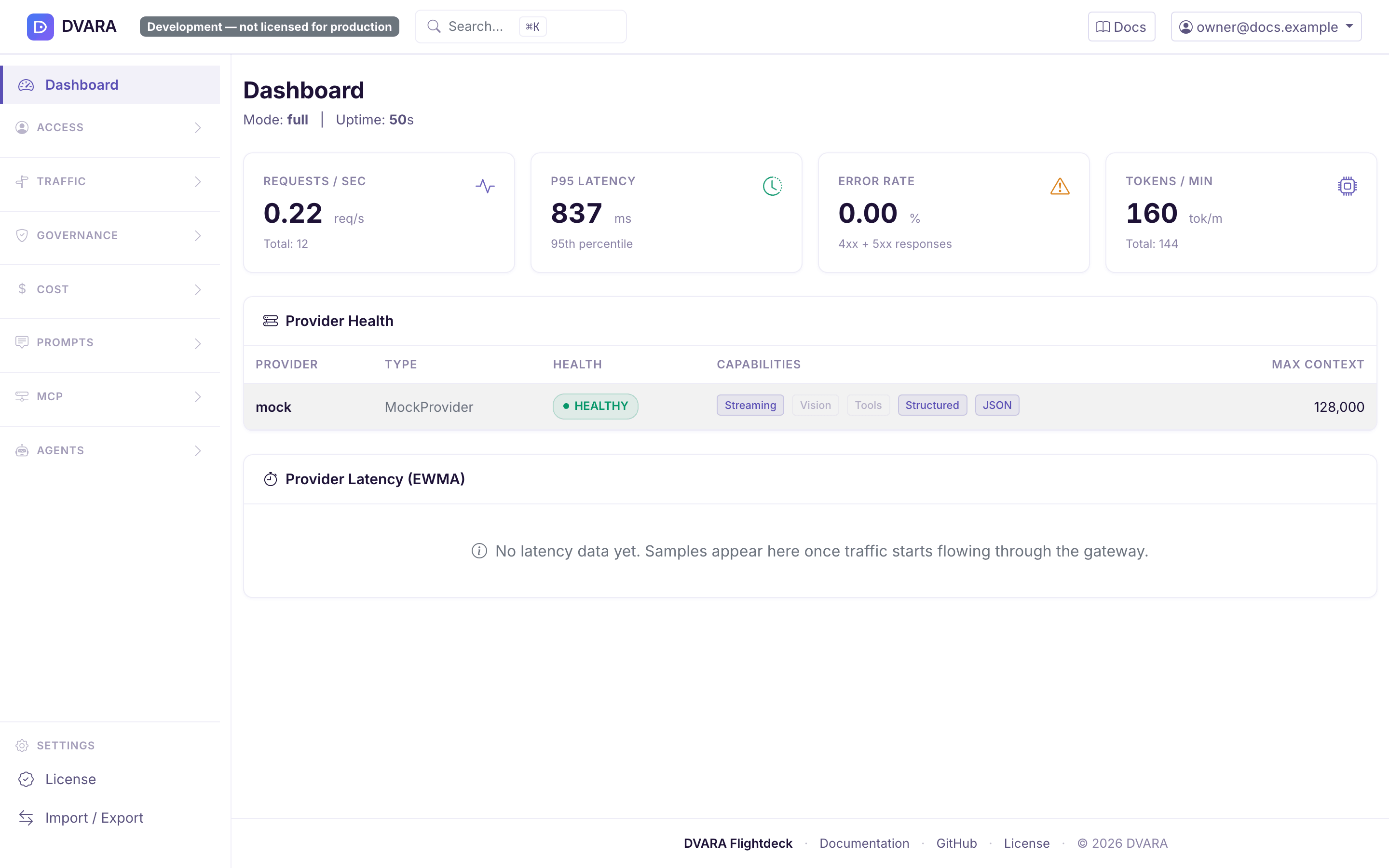
This completes the round trip: the application authenticates with a workspace key, the Gateway applies the workspace's controls before dispatch, and Flightdeck displays the resulting operational evidence.
Troubleshooting
| Symptom | Check |
|---|---|
| A container is not healthy | Run docker compose logs <service-name> and fix the first startup error. |
dvara-gateway keeps restarting | Check that DVARA_ENROLMENT_SECRET is set in .env and that dvara-flightdeck is healthy; the Gateway must enrol with Flightdeck before it serves. |
401 api_key_required | Send the Authorization: Bearer $DVARA_API_KEY header. |
401 invalid_api_key | Copy a current workspace key from Flightdeck and update DVARA_API_KEY. |
400 no_provider | Confirm OPENAI_API_KEY is set in .env, then restart the stack. |
OpenAI returns 401 | Replace the provider credential in .env; this is separate from the DVARA workspace key. |
Environment changes take effect only after the containers restart:
docker compose down
docker compose up -d
Stop DVARA
Stop the containers while keeping the PostgreSQL and gateway-data volumes:
docker compose down
To remove the local data and start again from an empty installation:
docker compose down -v
The second command deletes the local workspaces, keys, policies, and audit records created in this stack.
Next steps
- Govern MCP tool calls in 5 minutes to see the MCP plane allow, redact and deny tool calls on a seeded stack.
- Configure providers for OpenAI, Anthropic, Gemini, Bedrock, and other supported model providers.
- Configure policies to enforce model, token, and tool rules at runtime.
- Review Docker deployment for other local topologies and operational settings.
- Check capability availability for the Open Source and Enterprise distribution boundaries.
- Use the Data Plane API for supported endpoints, authentication, and request contracts.