API keys and provider credentials (BYOK)
DVARA governs every request to an upstream model provider — and it never holds your keys for you unless you ask it to. You issue your own workspace API keys, you bring your own provider credentials, and you rotate either kind without dropping in-flight requests. Every action is audited.
Sign in as a tenant admin or developer and confirm the gateway-connected indicator is green. Provider credential changes apply on the next data-plane request — there is no restart.
Create a tenant API key
The API key is what your application sends as Authorization: Bearer <key> to call /v1/chat/completions and the other data-plane endpoints.
DVARA never mints a key for you automatically. You create your first key yourself, so every key in your workspace exists because someone deliberately made it. There is no platform-side "default" key to discover, rotate, or worry about.
- Open Portal → API Keys.
- Click Create API key, give it a meaningful name (e.g.
acme-app-prod), and submit. - Copy the plaintext key from the confirmation screen. After you close the dialog you can see the key prefix and metadata, but not the plaintext.
The full gw_… value is displayed exactly once at creation. Copy it into your secret manager (Vault, AWS Secrets Manager, 1Password, GitHub Actions secrets, etc.) immediately — if you close the dialog without copying, the key is unrecoverable and you'll have to revoke it and create a fresh one. Only a SHA-256 hash is persisted server-side.
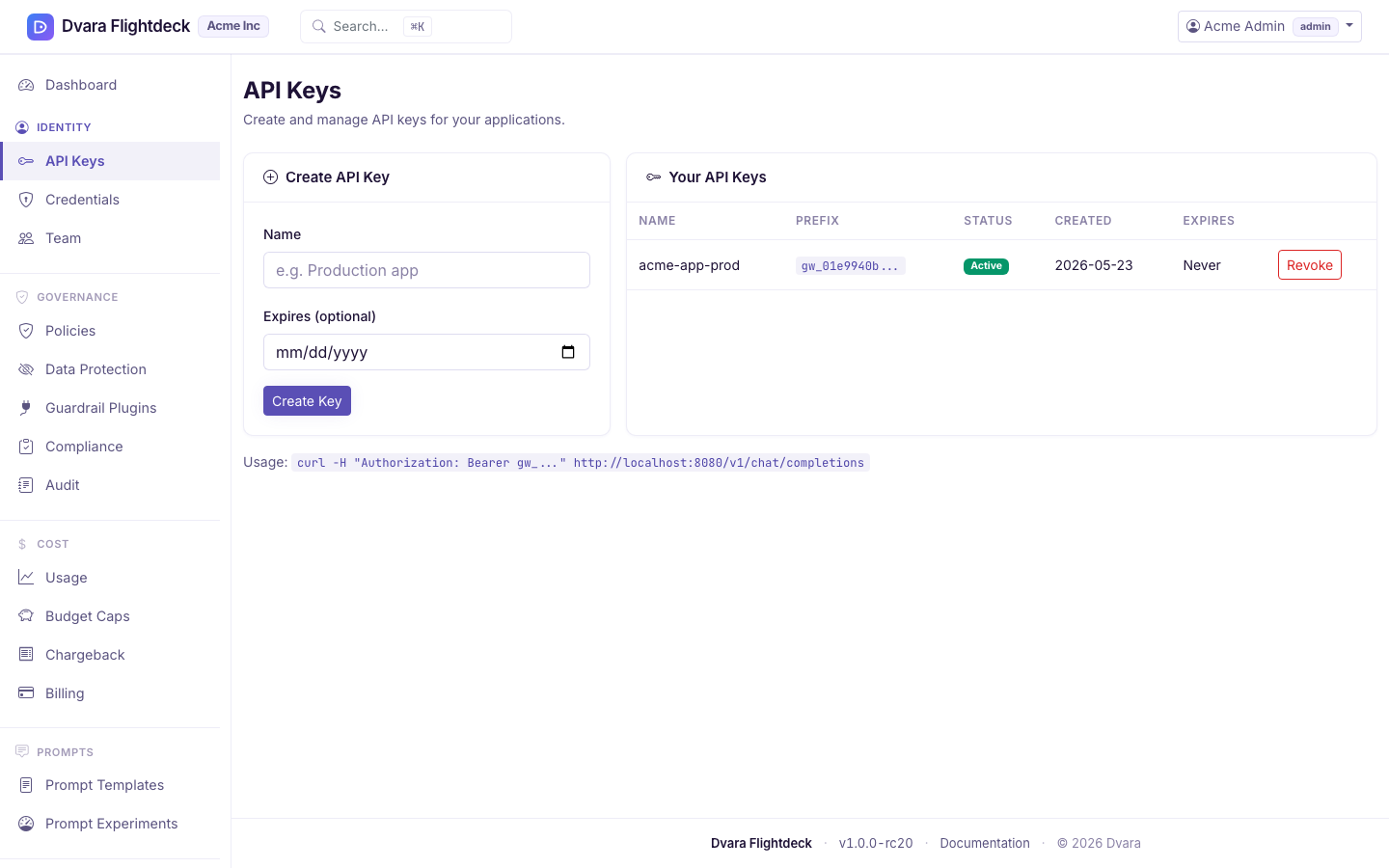
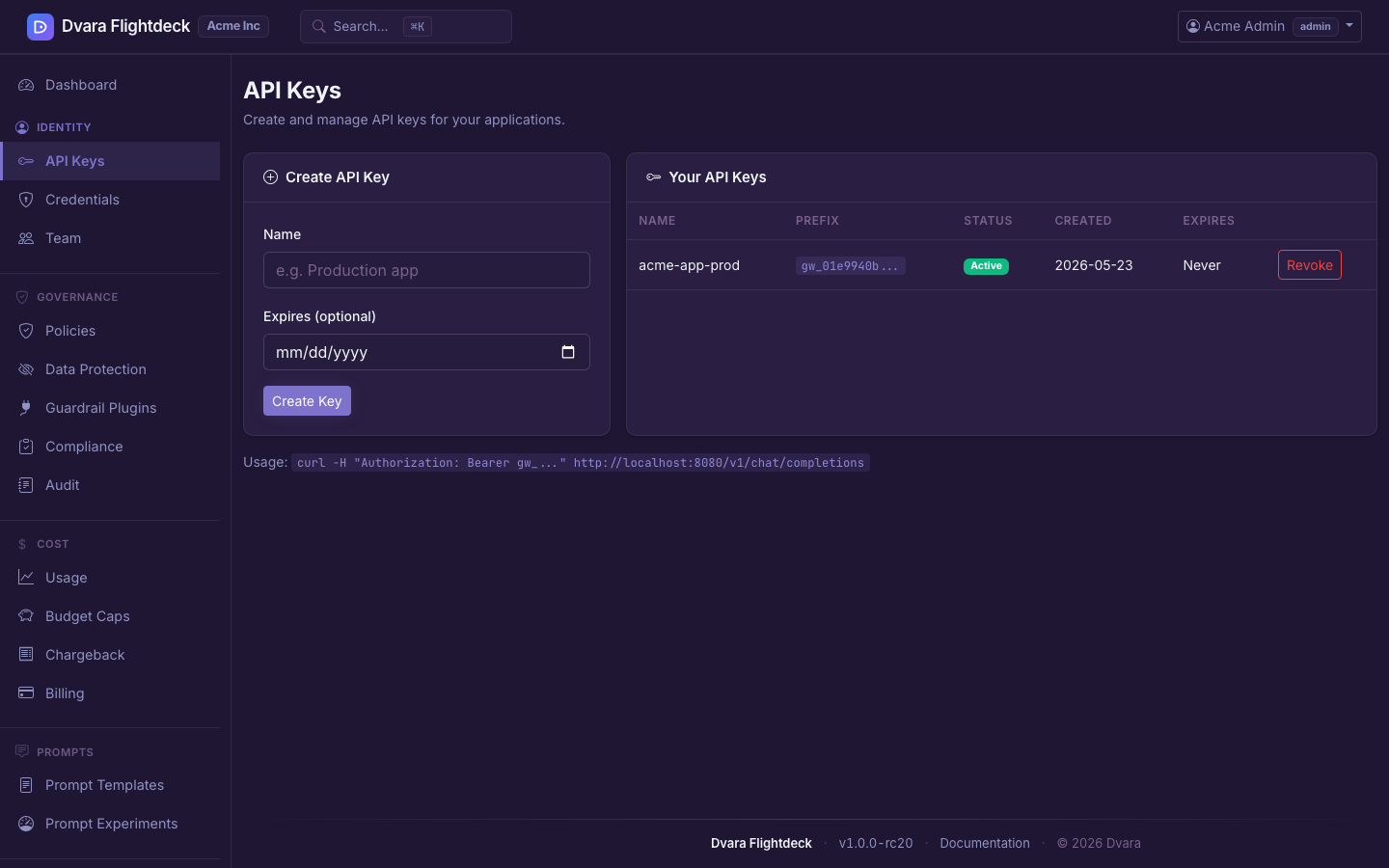
Figure 1. Portal → API Keys. Create a key here; the plaintext value is shown exactly once at creation.
Use the new key against the data plane:
curl https://api.dvarahq.com/v1/chat/completions \
  -H "Authorization: Bearer <your-api-key>" \
  -H "Content-Type: application/json" \
  -d '{"model":"gpt-4o-mini","messages":[{"role":"user","content":"hello"}]}'
An admin can revoke any key in the workspace; revocation takes effect immediately on the next request.
Add a provider credential
A provider credential is the upstream API key (OpenAI, Anthropic, Azure OpenAI, Mistral, Cohere, Groq, …) that DVARA uses to talk to the model provider on your behalf. On DVARA Cloud, every workspace brings its own.
- Open Portal → Credentials → Add credential.
- Pick the provider (e.g.
openai), name the credential (e.g.openai-prod), and choose a storage mode (see the next section). - Paste your upstream key, or paste a vault pointer. Submit.
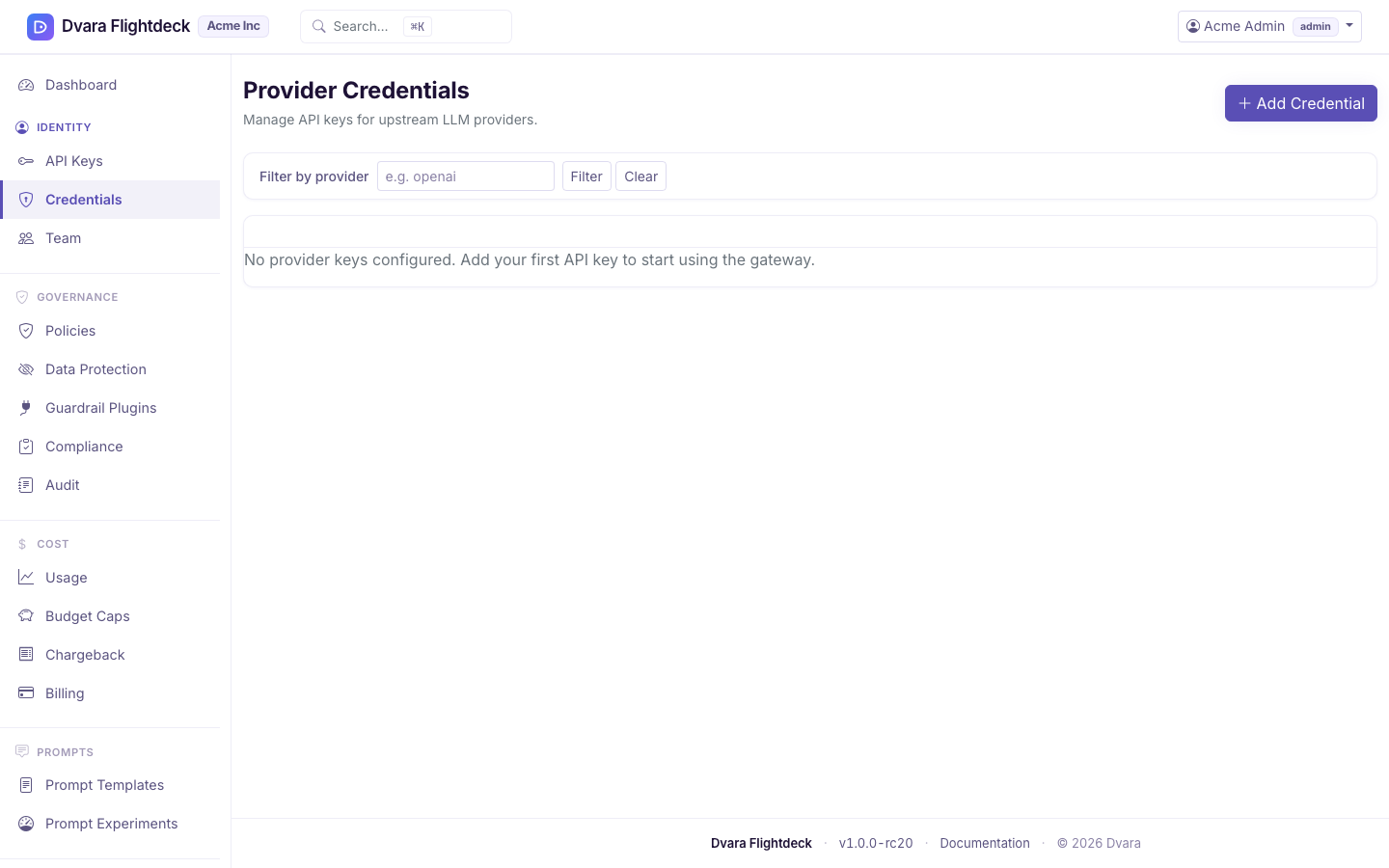
Figure 2. Portal → Credentials. The list filters by provider; each row shows status and last-rotated time.
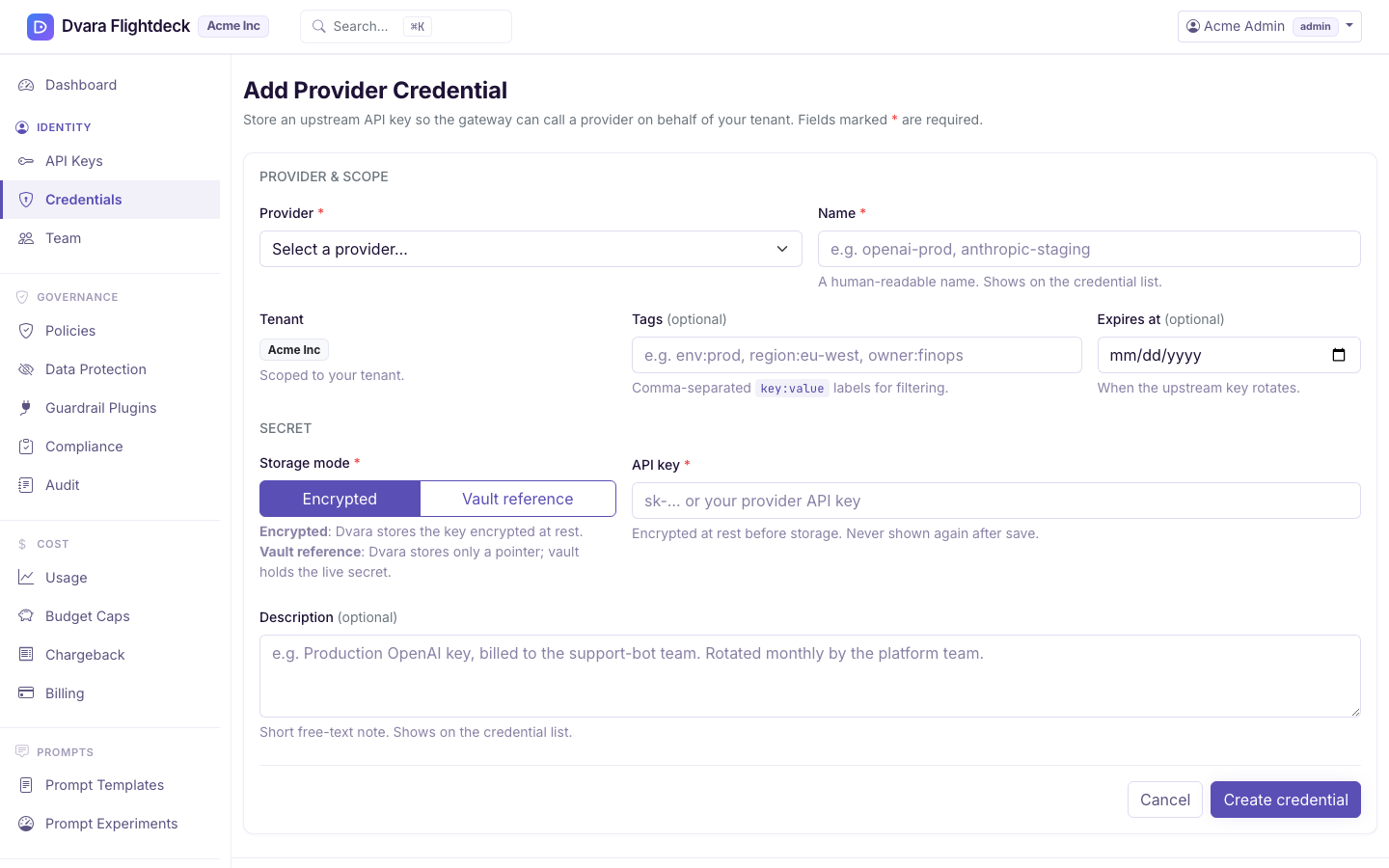
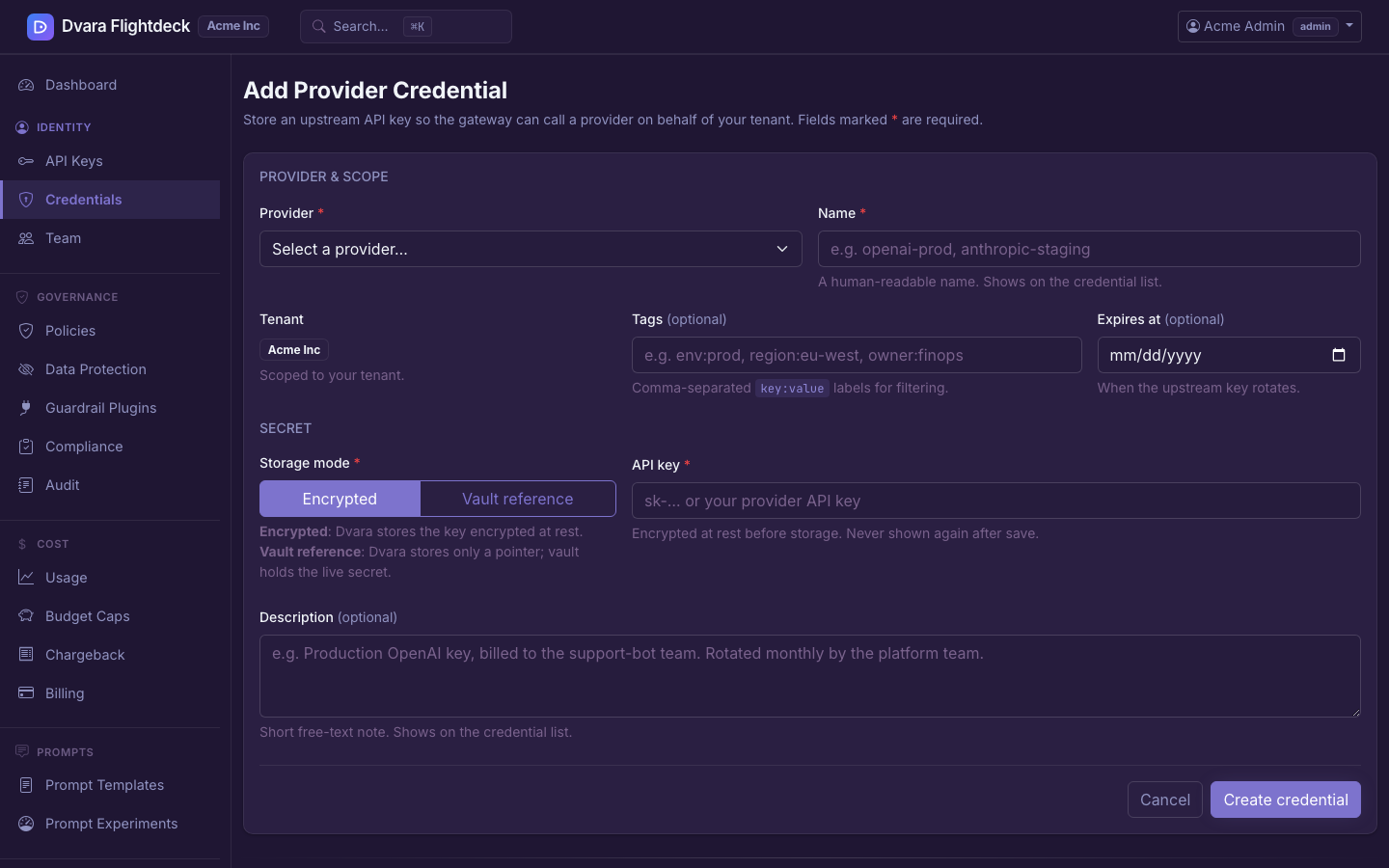
Figure 3. The Add Credential form. ENCRYPTED takes the upstream key directly; REFERENCE takes a vault pointer.
Pick a storage mode: ENCRYPTED or REFERENCE
Two storage modes serve two very different threat models:
| Storage mode | What you paste | Where the secret lives |
|---|---|---|
ENCRYPTED | The plaintext upstream key (e.g. sk-…) | The portal encrypts it with AES-256-GCM under a master password set by your operator, and stores the ciphertext at rest. The plaintext is never on disk |
REFERENCE | A pointer to a secret in your vault (e.g. a HashiCorp Vault path, an AWS Secrets Manager ARN, an Azure Key Vault URL) | Nothing. DVARA stores only the pointer and resolves the live value from your vault on every data-plane request |
Pick REFERENCE when your security posture says "no secret material ever lands on the gateway" — you already run a vault and want DVARA to fetch the live value on every call. Pick ENCRYPTED when you do not run a vault yourself and you want a one-step setup. Either kind can be rotated identically from the Portal; the threat-model choice is the only thing that differs.
Rotate without dropping in-flight requests
A rotation creates a new ACTIVE credential and lets the old one keep serving traffic for a grace window of your choice, then automatically retires it.
- Open Portal → Credentials, find the credential, click Rotate.
- Paste the new secret (or new vault pointer, if the storage mode is
REFERENCE). - Set a grace period in minutes — 30 is a good default. Setting
0retires the old credential immediately. - Submit. The new credential is
ACTIVEand starts serving the very next request. The old one moves toGRACEand continues to resolve until its window closes; after that, the scheduler flips it toSUPERSEDEDautomatically.
This is the safe way to rotate: no client retries, no failed calls, no flap in your error rate.
Common rotation mistakes
- Rotating an
ENCRYPTEDcredential and forgetting to paste the new secret. The form rejects the submission with "API key is required for encrypted credentials." Paste the new plaintext and try again. - Rotating a
REFERENCEcredential without a new pointer. Same shape — "secret reference is required for reference credentials." Paste the new vault path and try again. - Trying to rotate a
REVOKEDorSUPERSEDEDcredential. OnlyACTIVErows can rotate. Create a fresh credential instead.
Revoke or delete
Revoke (admin only) marks the credential as REVOKED immediately — the next data-plane request that needs it will fail until you create a replacement or rotate to a working one. Delete (admin only) removes the row entirely.
Prefer revoke for short-term incident response — the credential row stays in your audit lineage, so the postmortem can show exactly what was revoked and when. Reach for delete only when you are tearing down a project for good and no longer need the audit context for that credential.
What every action writes to the audit trail
Every change on this page lands in your workspace's audit log with your email as the actor:
| Action | Audit event |
|---|---|
| Create an API key | API_KEY_CREATED (carries key_prefix, key_name, scopes — never the plaintext) |
| Revoke an API key | API_KEY_REVOKED |
| Add a credential | PROVIDER_CREDENTIAL_CREATED |
| Rotate a credential | PROVIDER_CREDENTIAL_ROTATED (carries the old credential id so the lineage is recoverable) |
| Revoke a credential | PROVIDER_CREDENTIAL_REVOKED |
| Delete a credential | PROVIDER_CREDENTIAL_DELETED |
A GRACE window closes | CREDENTIAL_GRACE_EXPIRED (actor system:grace-expiry-scheduler) |
Search for any of these in the audit log to reconstruct who changed what and when.