Cap your spend and generate chargeback reports
Cost governance in DVARA Cloud is two pages, working together. Budgets decide what happens when spending crosses a threshold; chargeback reports are how your finance team gets the line-item breakdown they need at month-end.
Sign in as a tenant admin or developer (delete is admin-only). Budgets evaluate every data-plane request, so the gateway-connected indicator must be green for new caps to actually bind.
Read the budget caps that govern your workspace
Open Portal → Budgets. The list shows every cap that applies to your workspace, in two flavours:
| Provenance | Who sets it | Can you change it? |
|---|---|---|
PLATFORM | The operator who runs DVARA Cloud | No — read-only, shown with a lock badge |
TENANT | You, from this page | Yes — full edit |
On DVARA Cloud, fleet-wide caps (caps the operator sets across every customer) are not shown to you and do not act as a ceiling on your workspace alone. Only per-tenant PLATFORM caps the operator targets at your workspace count as a ceiling.
Each cap has a period (DAY, WEEK, MONTH), a limit in USD, an optional soft limit as a percentage of the hard limit, and an enabled flag.
Add a workspace cap (you can only tighten, never loosen)
- Click Add cap.
- Pick a period and a USD limit. If the operator has set a ceiling cap on your workspace, your cap must be at or below it — you can tighten spend, you cannot escape an operator-imposed ceiling.
- Optional: set a soft limit (typical is
80%). Spend crossing the soft limit fires an alert but does not block traffic; spend crossing the hard limit rejects calls. - Submit.
When no operator ceiling exists, your cap stands on its own. Budget evaluation is tightest-wins: the most restrictive enabled cap that matches a request governs that request's spend.
Track current period spend
Each row shows period-to-date spend versus the hard limit, with a progress bar. The numbers update on every data-plane response — they're a near-real-time view of where you are in the period. Cross the soft limit and the row turns amber; cross the hard limit and it turns red. New calls fail with BUDGET_CAP_HARD (HTTP 402 Payment Required) until the period resets.
Generate a chargeback report
Open Portal → Chargeback → Generate, pick the date range (defaults to the previous calendar month), and submit. The report aggregates your workspace's spend by model, provider, API key, and any cost tags your applications passed along with their requests. It is a full snapshot — once generated, the numbers cannot drift.
Download PDF or CSV
Every generated report has a PDF download (formatted, ready to email a finance team) and a CSV download (line items for a spreadsheet or BI tool). Both downloads are read-only and not audited.
Old reports stick around until you delete them. Delete is admin-only.
What every action writes to the audit trail
| Action | Audit event |
|---|---|
| Create a tenant cap | BUDGET_CAP_CREATED (carries managed_by: TENANT) |
| Edit a tenant cap | BUDGET_CAP_UPDATED |
| Delete a tenant cap | BUDGET_CAP_DELETED |
| Cross the soft limit | BUDGET_CAP_SOFT (deduplicated within a cooldown window) |
| Cross the hard limit | BUDGET_CAP_HARD (one event per blocked request) |
| Generate a chargeback report | CHARGEBACK_REPORT_GENERATED |
| Delete a chargeback report | CHARGEBACK_REPORT_DELETED |
Report downloads are deliberately not audited — they read a file that was already produced and audited at generation time.
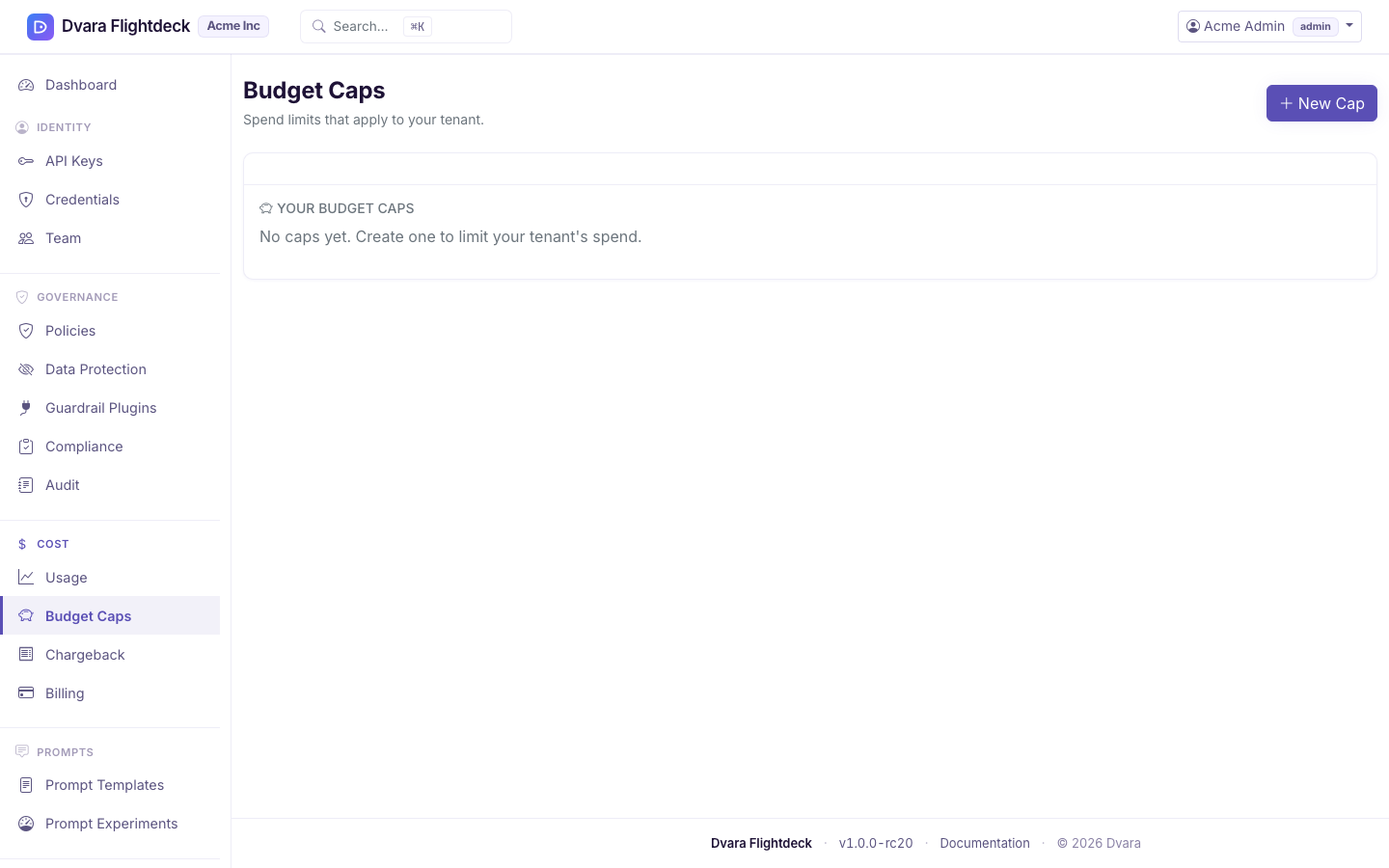
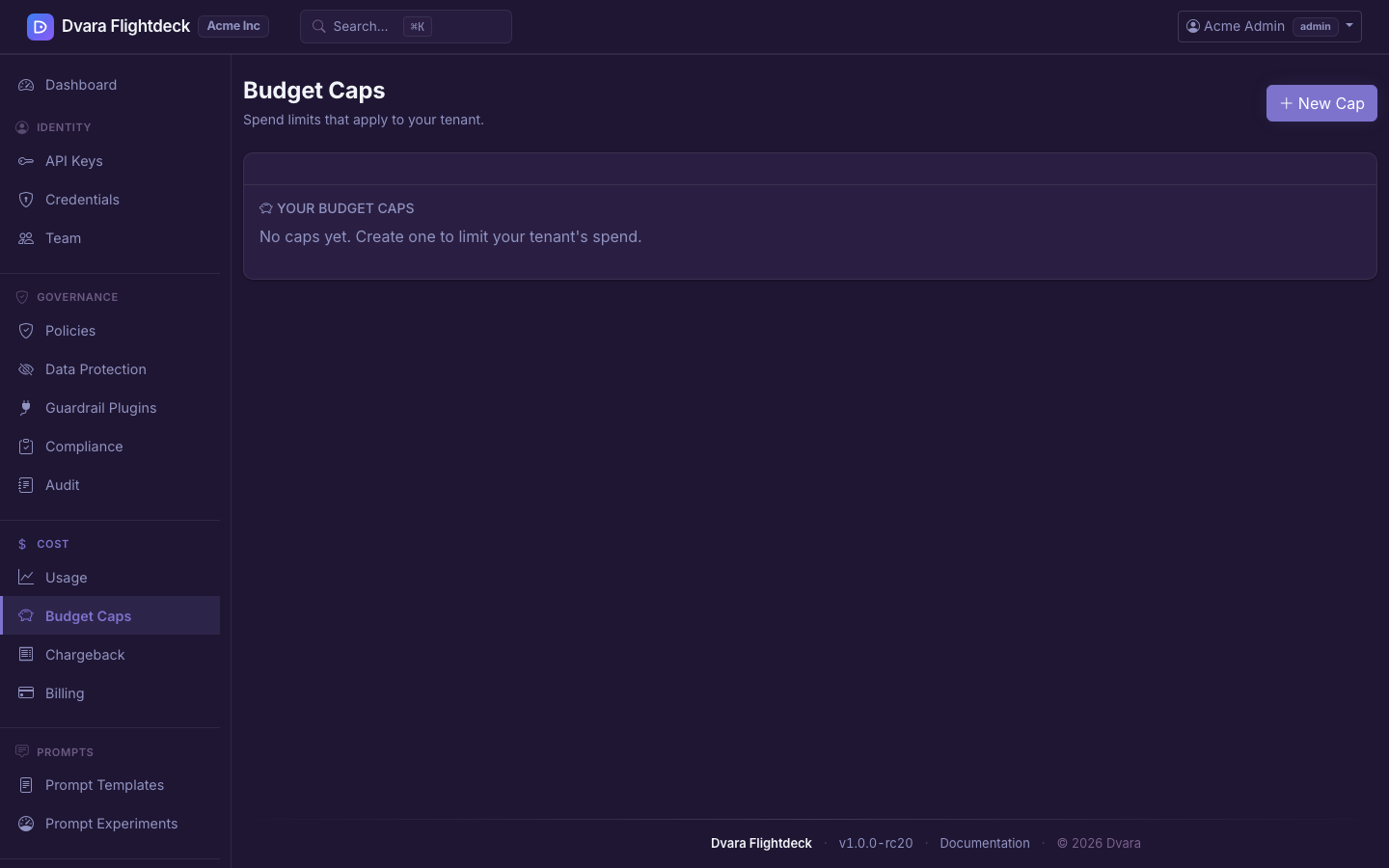
Figure 1. The Budgets page. Tenant caps and operator-imposed ceiling caps both show here, with provenance and period-to-date spend.
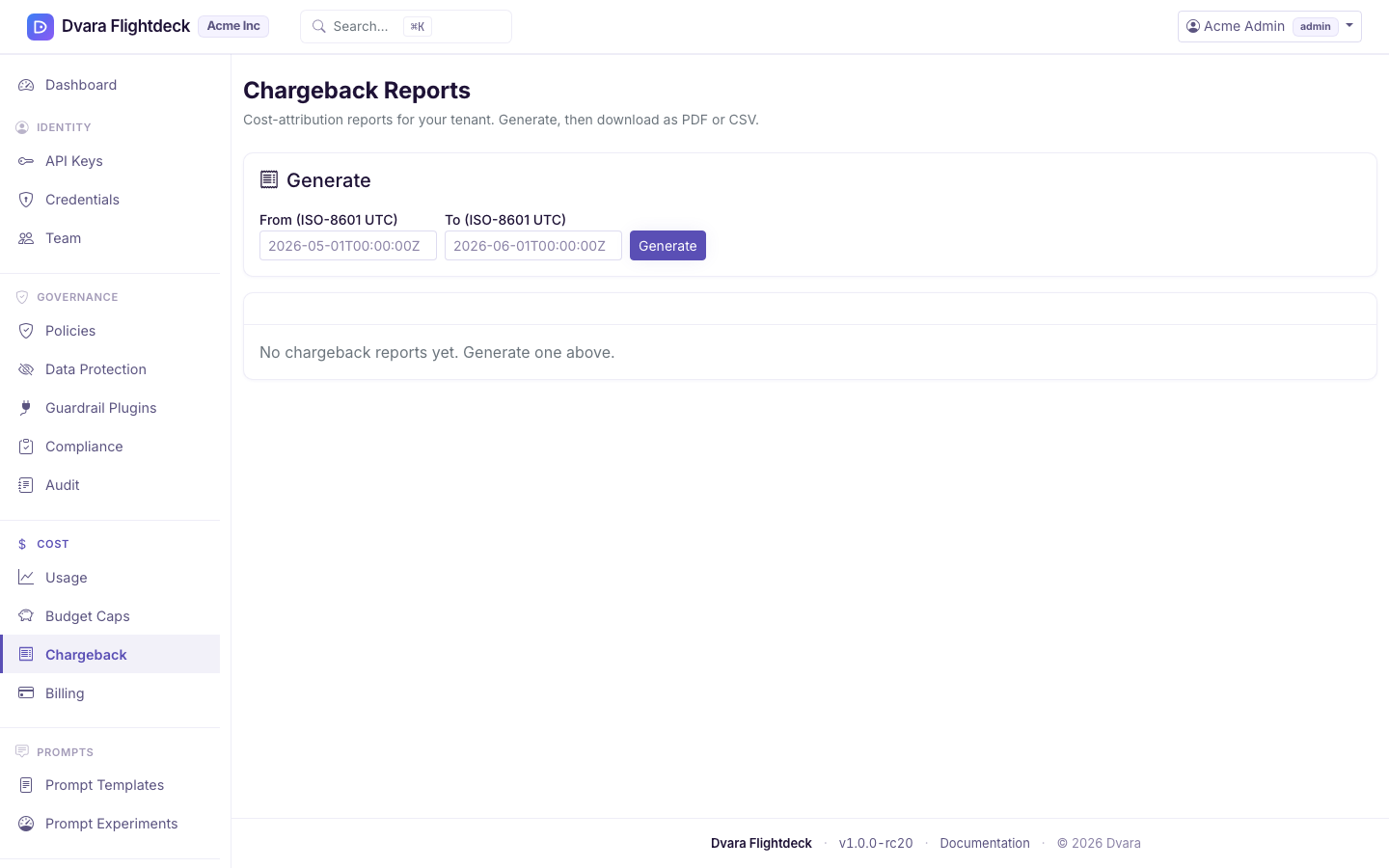
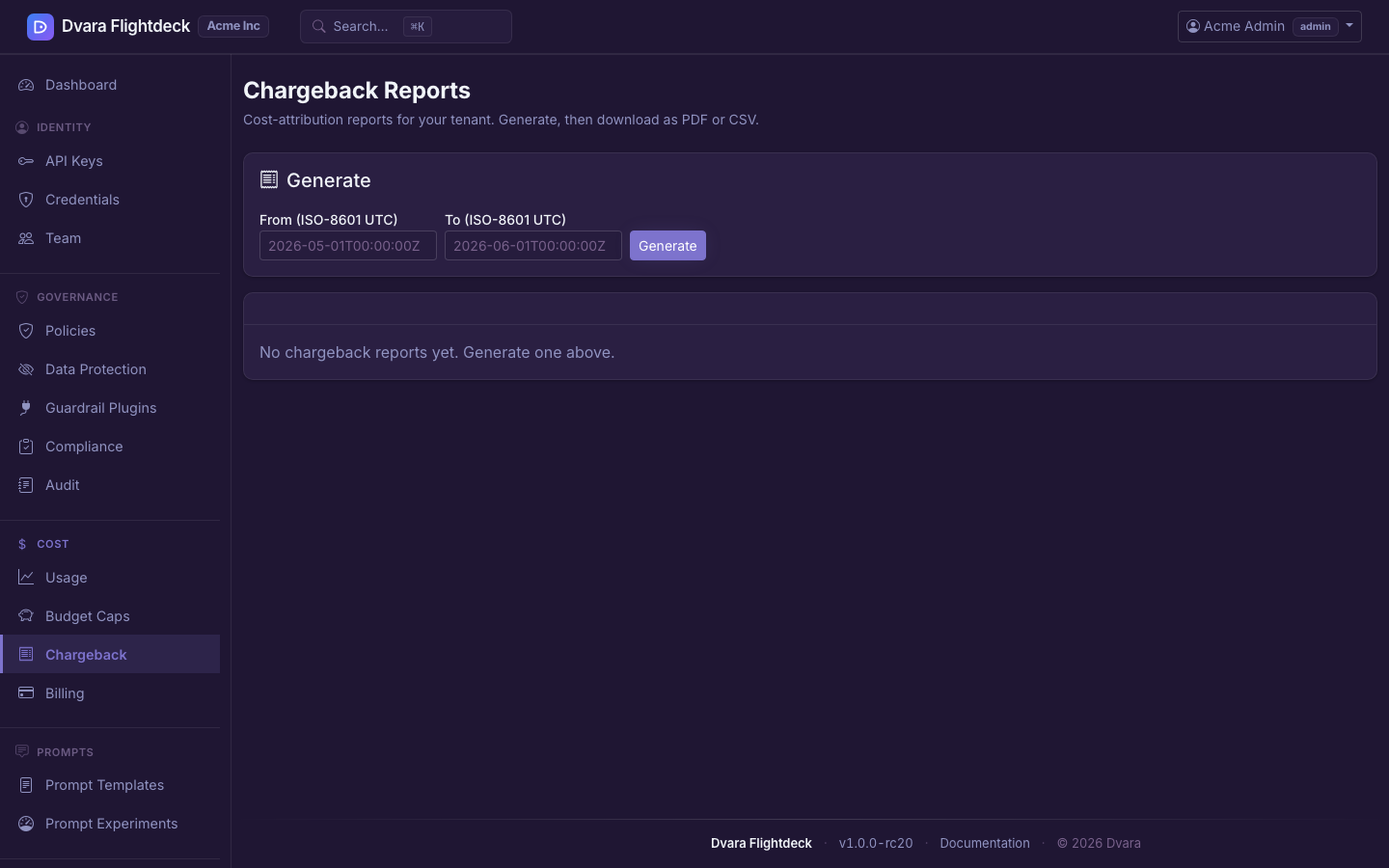
Figure 2. The Chargeback page. Generate a report for any date range; download the PDF or CSV for finance.