Govern MCP servers, watch activity, and approve agent actions
Model Context Protocol — MCP — is how AI agents reach the tools that take real-world action. DVARA's MCP governance treats every tool call the same way it treats a model call: policy-evaluated, audited, optionally human-approved. This page is where your workspace registers servers, watches what they are doing, and resolves gated requests.
Sign in as a tenant admin or developer. Server registration works regardless of the gateway-connected indicator; live tool-call and session activity refresh only when the indicator is green — those tables are populated by the data plane in real time.
Register an MCP server
- Open Portal → MCP servers → Register server.
- Fill in a server id (a stable identifier unique within your workspace, e.g.
prod-search), the transport (HTTPorSSE), the URL where the server speaks MCP, and any credentials the server needs. - Submit.
The server id is unique per workspace — you can have a server called prod-search even if another customer has one with the same id, with no collision.
The server URL is egress-validated on submit the same way webhook URLs are — non-http(s) schemes, loopback / private / link-local / cloud-metadata IPs are rejected. Tool-sync reflects the upstream's response into your audit trail, so the guard is deliberately strict.
Sync the tool catalog
Open the server and click Sync tools. DVARA connects to the server, lists its tools (with their schemas), and caches the catalog for fast lookup. The cached catalog is what your policies match against when you write rules like "deny calls to tool send_payment unless the request includes an approval token."
Re-sync after the server adds, renames, or removes tools — there is no automatic discovery.
Run a health check
Click Health on any server to probe it without firing a real tool call. The result shows the round-trip latency and any error message inline. Use it to verify a new registration before you turn agents loose on it.
Health checks are read-only and not audited.
Watch live tool calls and sessions
Two views, one truth:
- Tool calls (
/portal/mcp/tool-calls) — every individual tool invocation, with the server, tool name, session id, latency, status, response bytes, and whether any PII or policy decision applied. Click a row to see the full call detail. - Sessions (
/portal/mcp/sessions) — every agent session that has run, with summary metrics (call count, average latency, error rate, total bytes) and a timeline. Click into a session for the full timeline view.
Both lists are scoped to your workspace and update on a short poll while open. When the gateway-connected indicator is red, the lists stop updating — the data plane is what populates them.
Kill a runaway session
A session that is looping, leaking budget, or doing something it should not can be terminated immediately from the session detail page. Click Kill session. Future tool calls in that session are rejected.
Kill is admin or developer.
Approve or deny a gated tool call
When a tool call lands on an approval rule, the call is held and a row appears in Portal → Approvals. Each pending row shows the requesting session, the server, the tool name, and the arguments the agent wants to invoke with.
Click Approve to release the call; click Deny to reject it with an error the agent receives. Both decisions are audited.
Approvals time out automatically — your operator configures the default timeout for the install, and individual rules can override it. A timed-out approval is the same as a denial from the caller's perspective.
What every action writes to the audit trail
| Action | Audit event |
|---|---|
| Register an MCP server | MCP_SERVER_CREATED |
| Edit a server | MCP_SERVER_UPDATED |
| Delete a server | MCP_SERVER_DELETED |
| Sync the tool catalog | MCP_SERVER_TOOLS_SYNCED |
| Kill a session | MCP_SESSION_KILLED (carries tool_call_count) |
| Approve or deny a pending tool call | MCP_APPROVAL_RESOLVED (carries action, server_id, tool_name, session_id) |
Health checks and read-only browsing of the activity views are not audited.
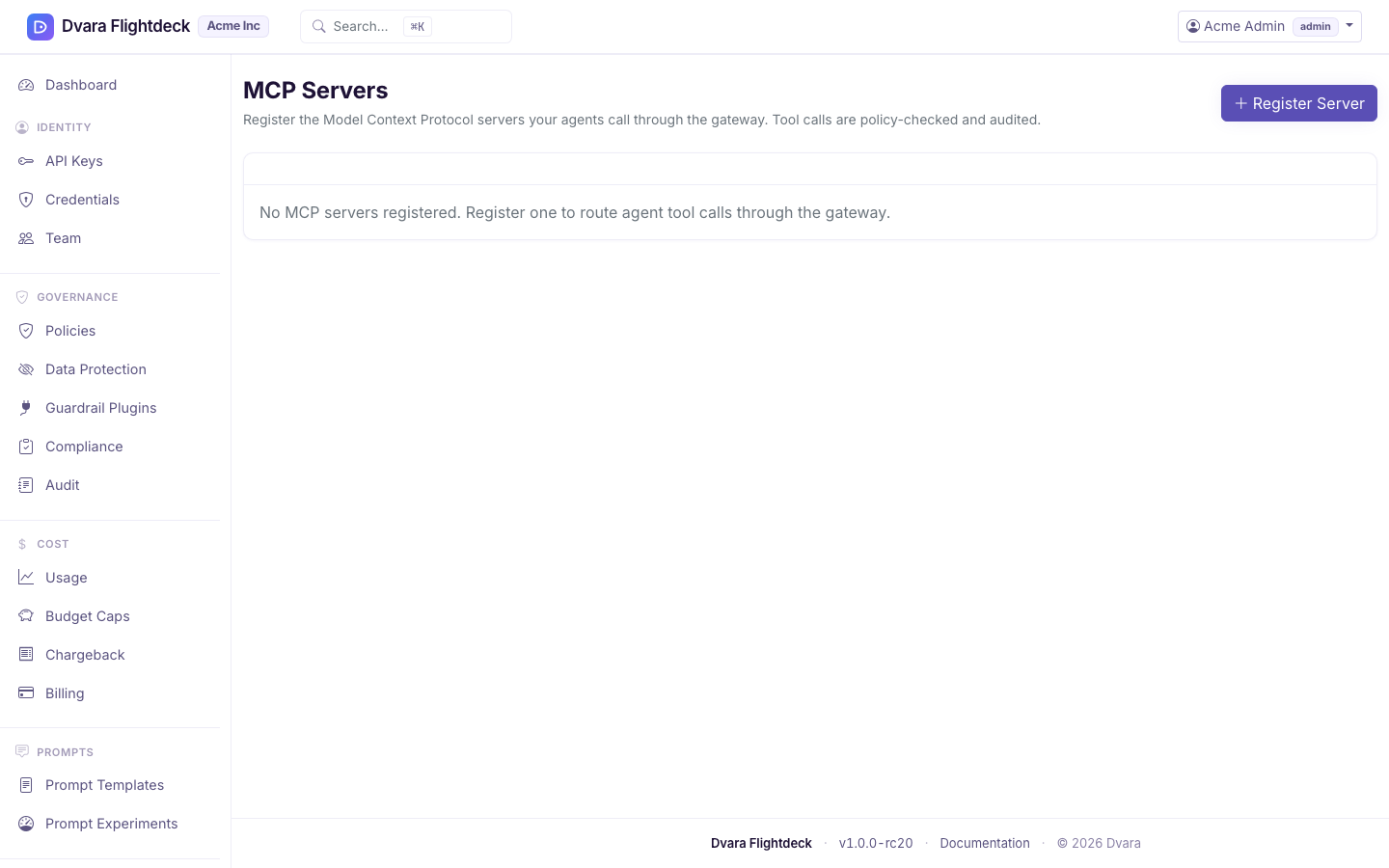
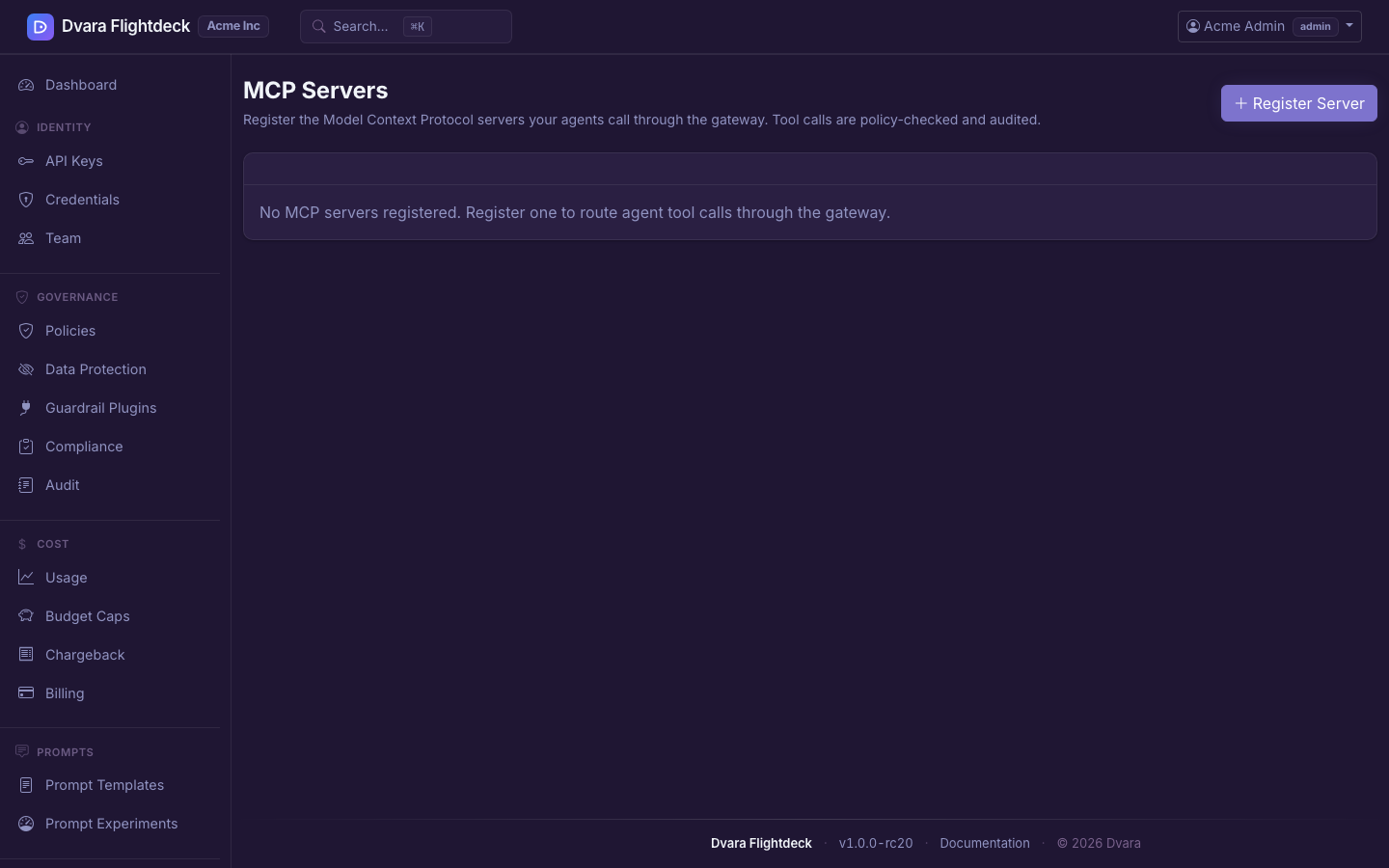
Figure 1. The MCP servers page. Register a server, sync its tool catalog, and probe its health.
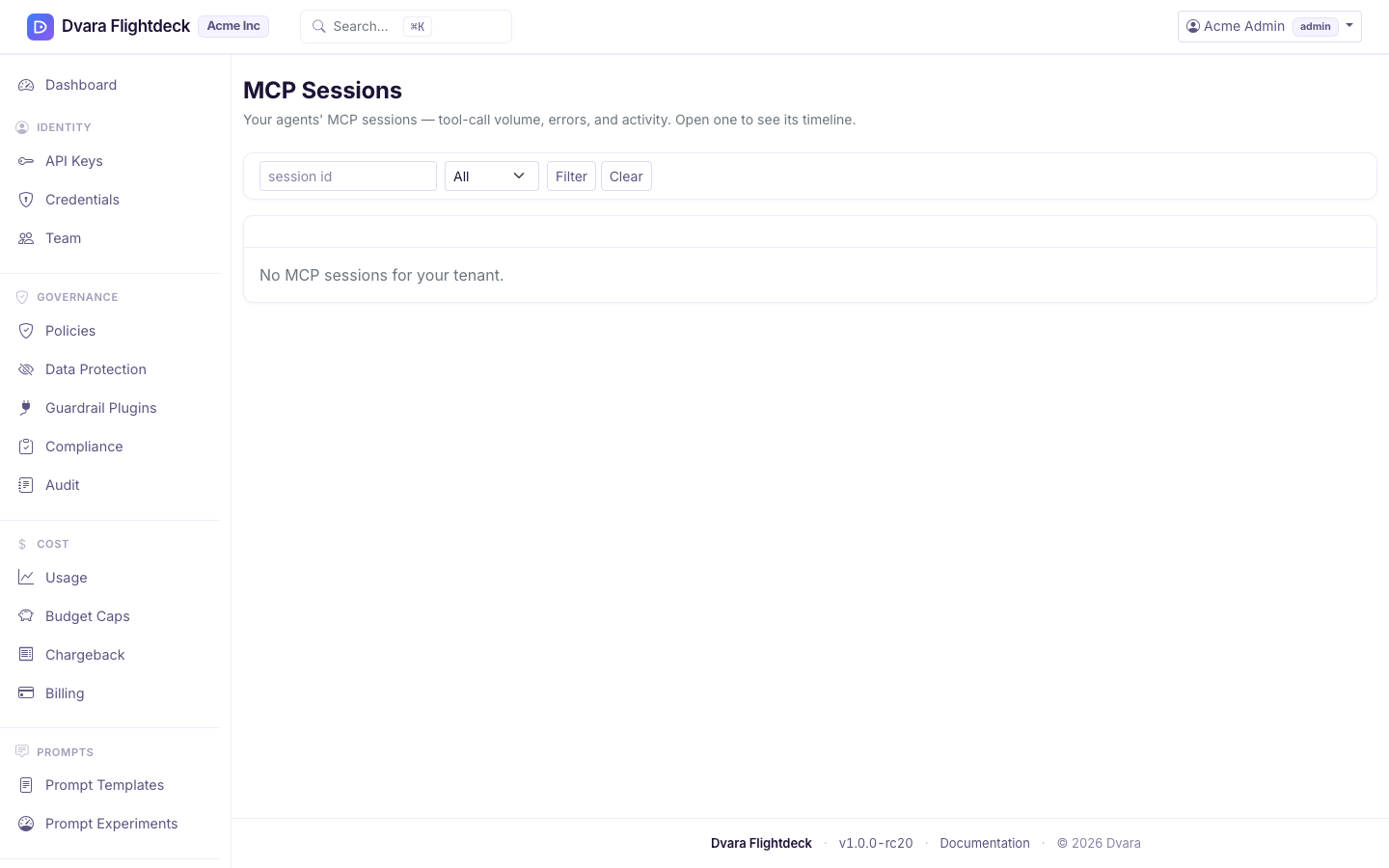
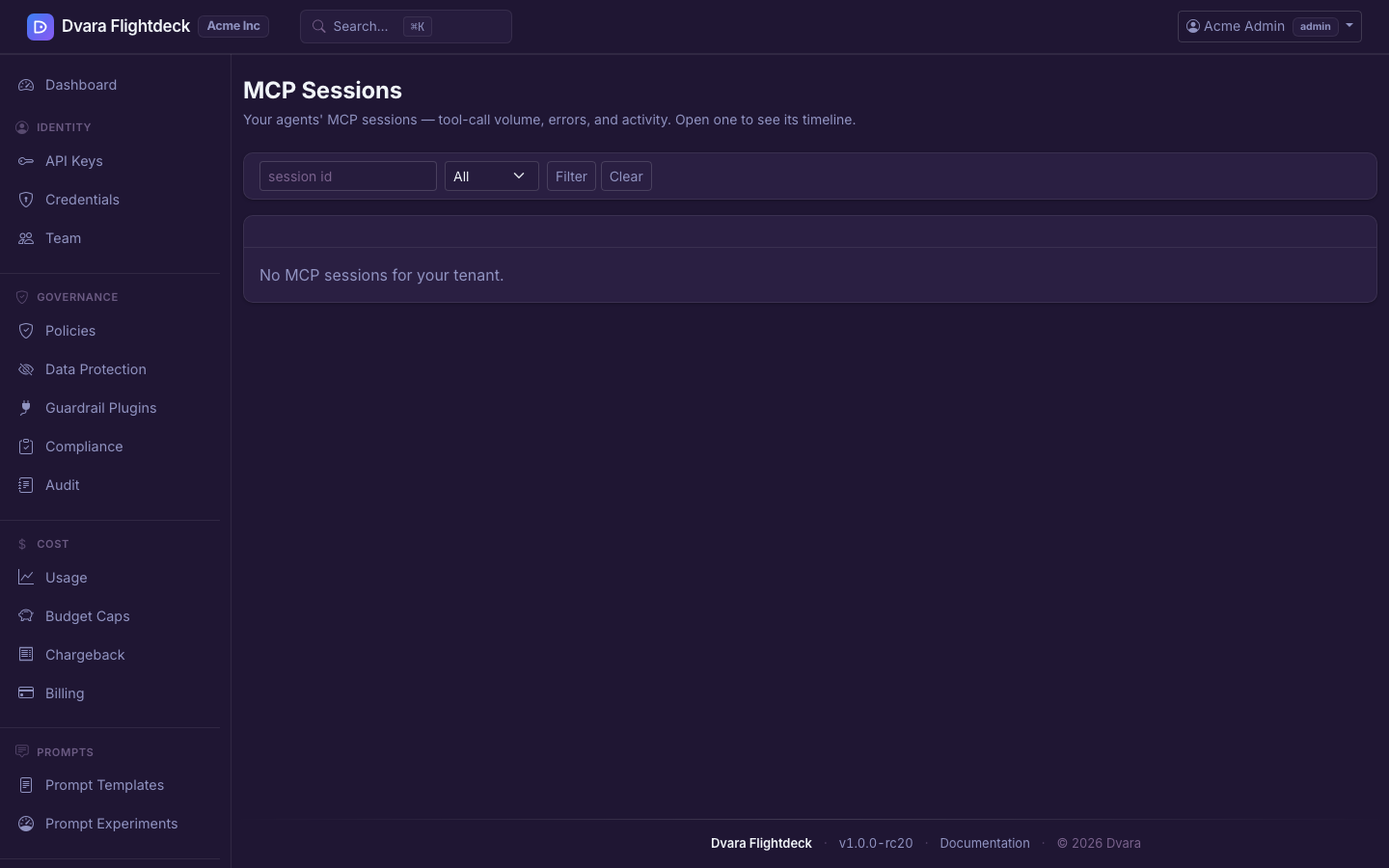
Figure 2. The MCP sessions page. Watch live sessions and their tool-call timelines; kill a runaway session from here.
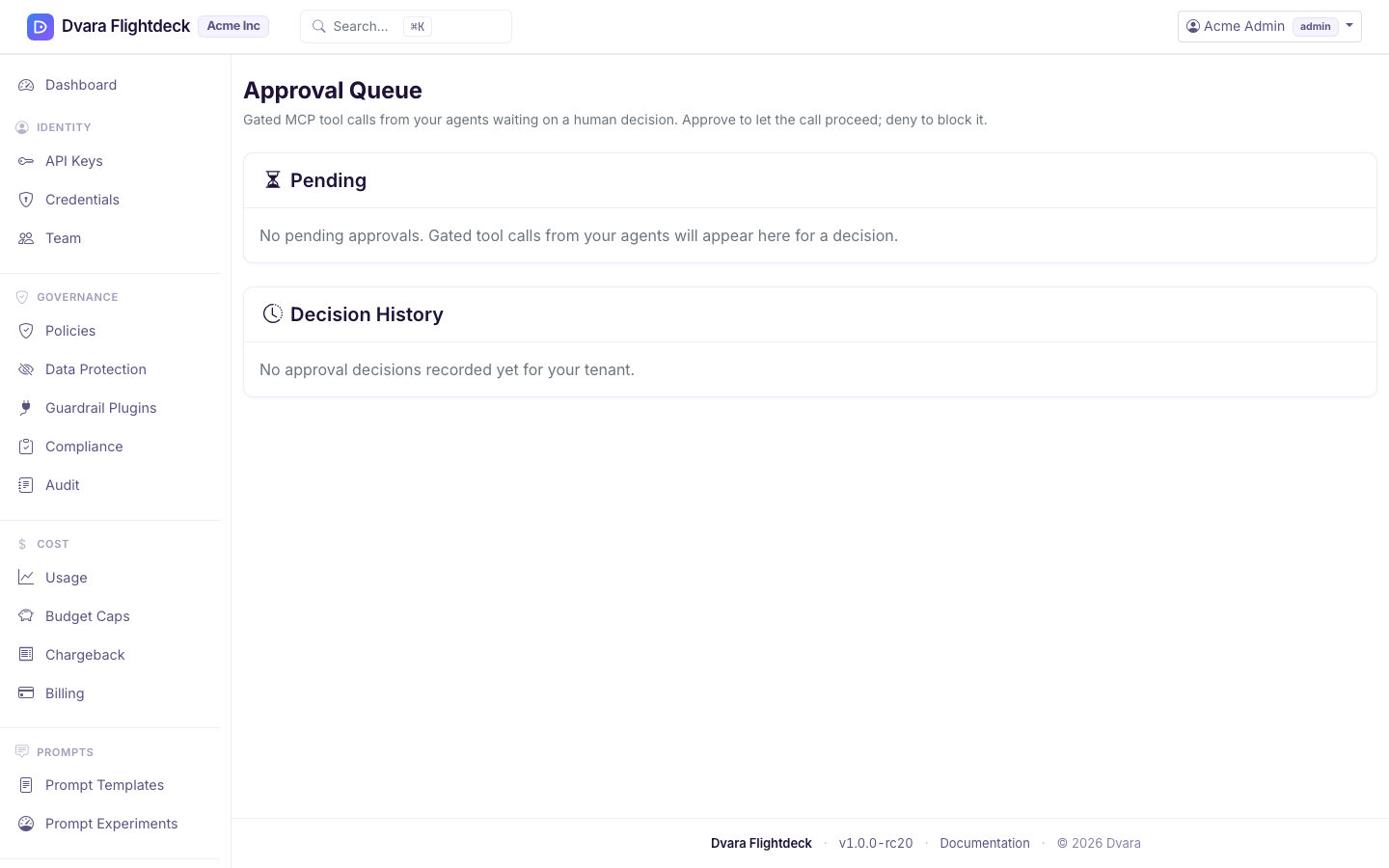
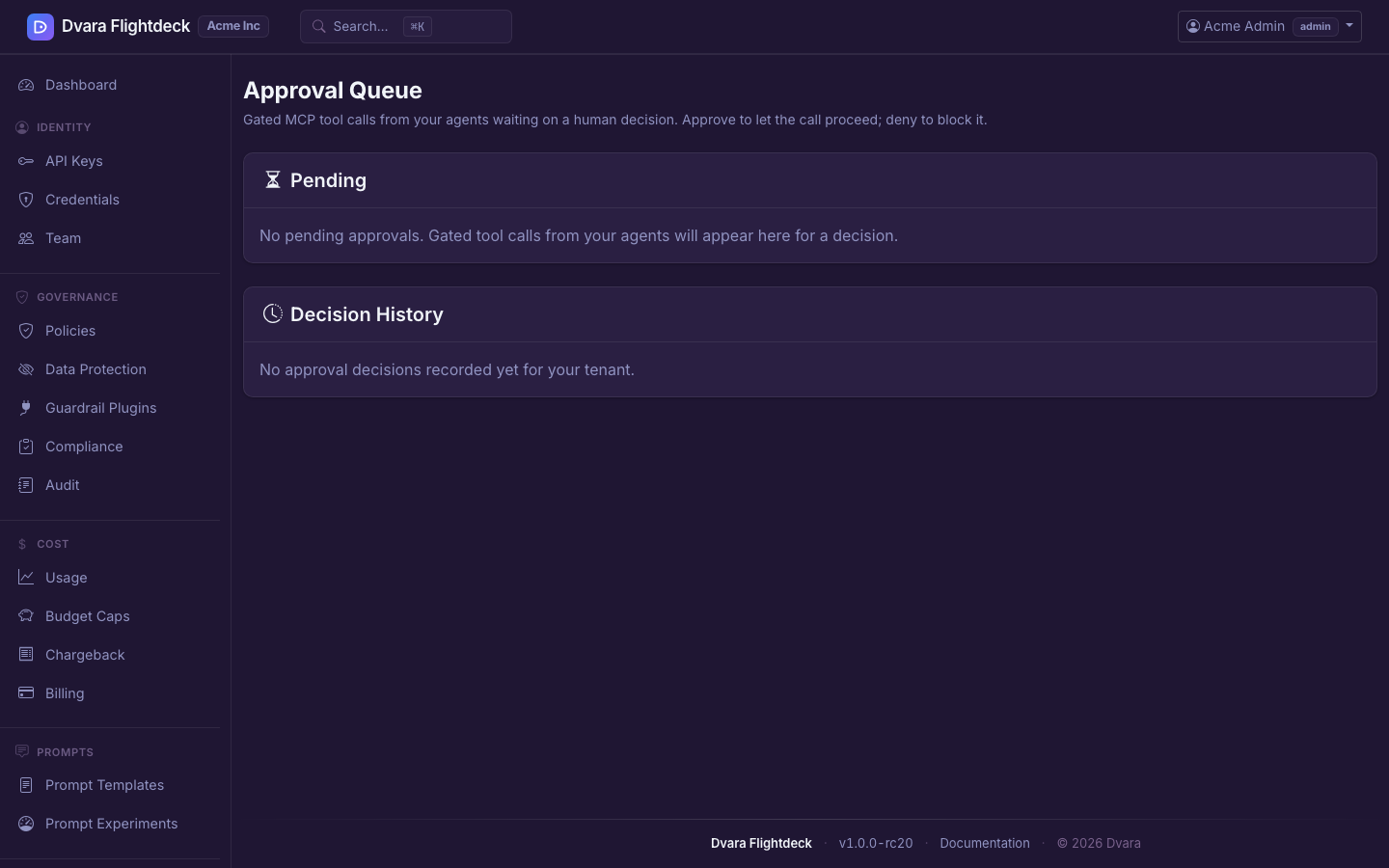
Figure 3. The Approvals queue. Pending and historical rows show the requesting session, server, tool, and arguments.