Invite teammates and manage access
Every action in your workspace is tied to a person — the audit trail records the actor's email, every policy promotion has someone's name on it, every credential rotation can be traced back to a teammate. This page is where that team is built.
Team management is admin-only. Developers and viewers will see a redirect to the portal home if they try to reach the team page. The gateway-connected indicator does not gate this page — invitations work even when the data plane is unreachable.
Invite a teammate
- Open Portal → Team → Invite member.
- Enter the teammate's email and pick a role (
admin,developer, orviewer— see Sign in to your workspace for what each role can do). - Submit.
The portal creates a user in your workspace in INVITED state and sends them an email with a one-time link of the form /register?token=<uuid>. The token is valid for 7 days.
You cannot invite a teammate with a platform role from the portal — only your three tenant roles are offered. That is by design: the people who run DVARA Cloud carry platform roles and live on the operator's surface, not your workspace.
What happens to the invitation
When the invitee opens the link they pick a password, the user transitions to ACTIVE, and they land on the portal at sign-in. Until then, the row in the team list shows INVITED.
If the link expires before they accept (7 days), invite them again — there is no self-service resend.
Change someone's role
The Portal team page covers list, invite, and remove. To change an existing teammate's role, remove them and invite them again with the new role — the in-place role edit is an Automation-API path (PUT /v1/admin/users/{id}/roles), not a Portal action.
Remove a teammate
Open the team list, click the teammate, click Remove. The user is removed from your workspace immediately and their personal access tokens are revoked.
A few rules:
- You cannot remove yourself. If you are the only
adminleft, invite anotheradminfirst. - A removed teammate's audit history stays — events carry the email of whoever acted at the time, and the audit trail is immutable.
- Removed users cannot sign back in to your workspace. DVARA Cloud treats every email as a global account identifier — one email maps to one workspace at a time — so there is no "they still belong to another customer's workspace" scenario to worry about. Once removed, the email is free for a different workspace to invite under the same address.
Closing the workspace and billing
Two admin-only flows live elsewhere on the site because they predate this page:
- Change or cancel your plan. Open Portal → Billing to reach the Stripe-hosted customer portal. Plan changes apply on the schedule Stripe manages; cancellations move the workspace into a graceful offboard. The full walkthrough is in Plans & billing.
- Close your workspace. Account deletion is scheduled, not instant — it is fully recoverable for a grace window before the purge runs. The walkthrough is in Managing your account.
What every action writes to the audit trail
| Action | Audit event |
|---|---|
Invite a teammate from /portal/team/invite | (not currently emitted from the portal team flow — the platform-side invite emits USER_INVITED) |
| Change or cancel your plan | Stripe's customer.subscription.updated / customer.subscription.deleted webhooks are the audit record |
| Request workspace deletion | TENANT_SELF_DELETE_REQUESTED (with your email as actor) |
| Cancel a pending workspace deletion | TENANT_SELF_DELETE_CANCELED |
The portal team-invite path does not yet emit a dedicated audit event. If your compliance regime requires "every user-lifecycle action is audited," coordinate with your operator to track invitations through the platform-side USER_INVITED event, or watch the team list for the INVITED → ACTIVE transition.
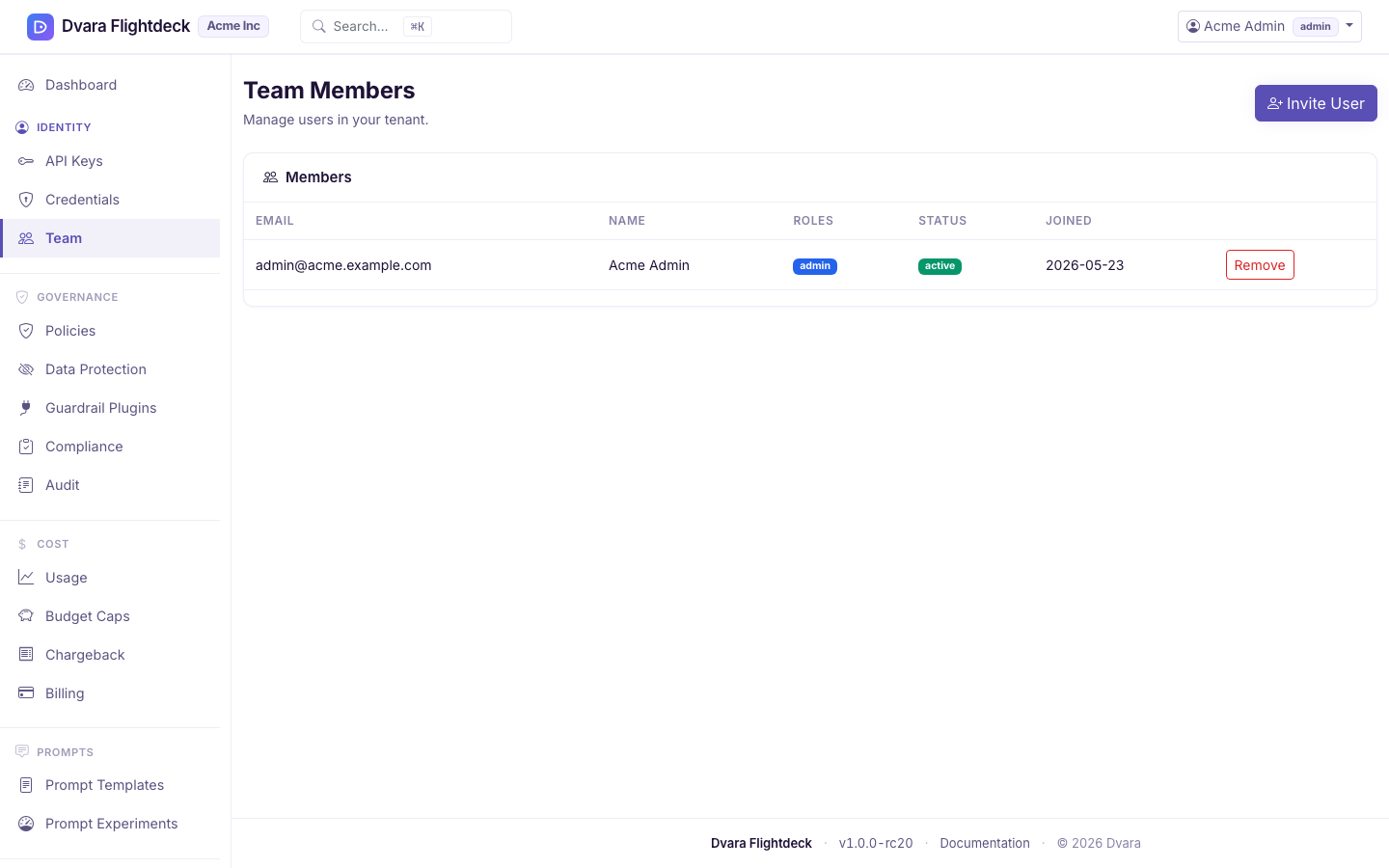
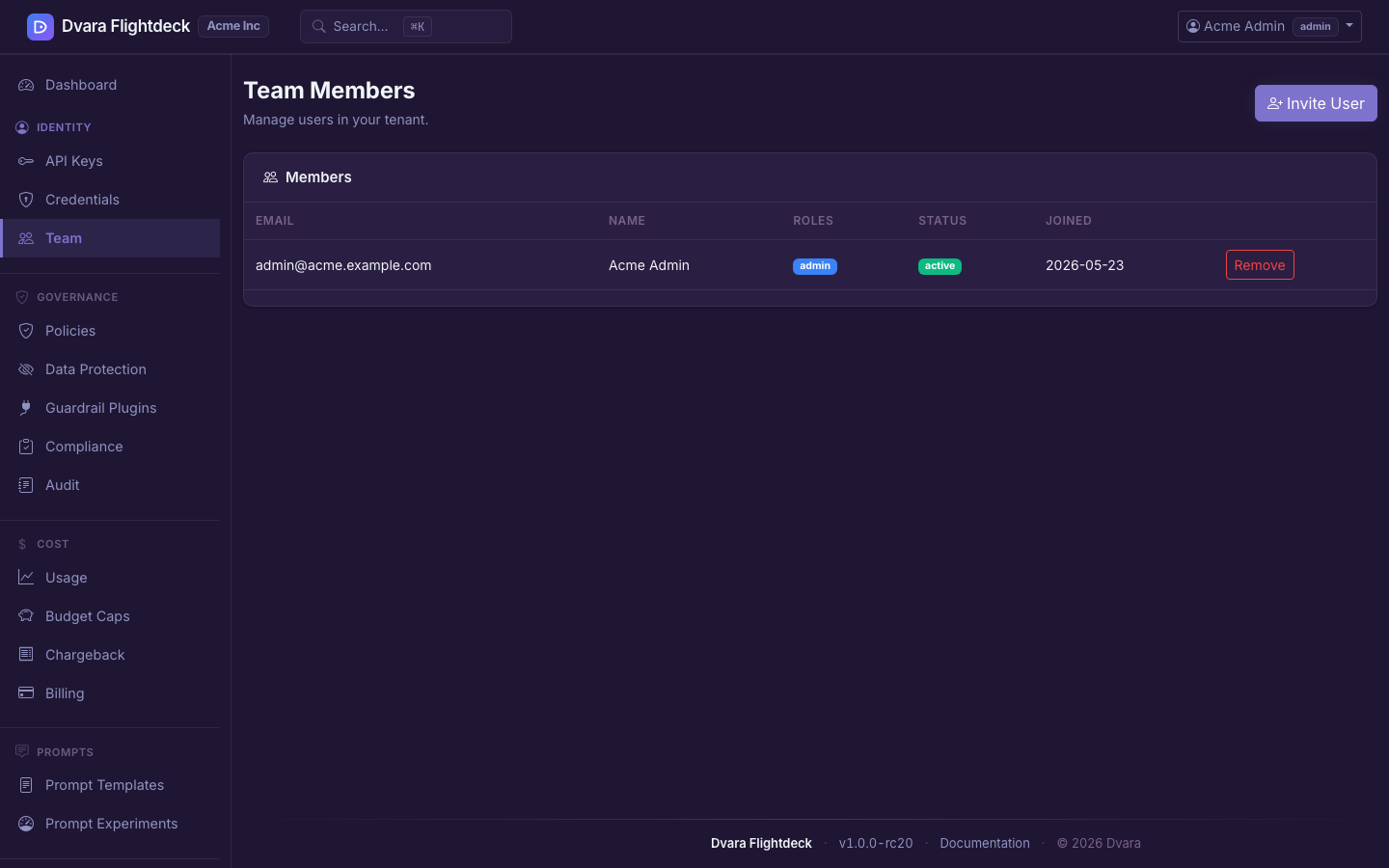
Figure 1. The Team page — admin-only. Invite teammates with admin, developer, or viewer roles; remove members from the same screen.