Govern MCP servers, watch activity, and approve agent actions
Not included in DVARA Open Source.
Model Context Protocol — MCP — is how AI agents reach the tools that take real-world action. DVARA's MCP governance treats every tool call the same way it treats a model call: policy-evaluated, audited, optionally human-approved. This page is where your workspace registers servers, watches what they are doing, and resolves gated requests.
Sign in as a workspace admin or developer. Server registration works regardless of the gateway-connected indicator; live tool-call and session activity refresh only when the indicator is green — those tables are populated by the data plane in real time.
Register an MCP server
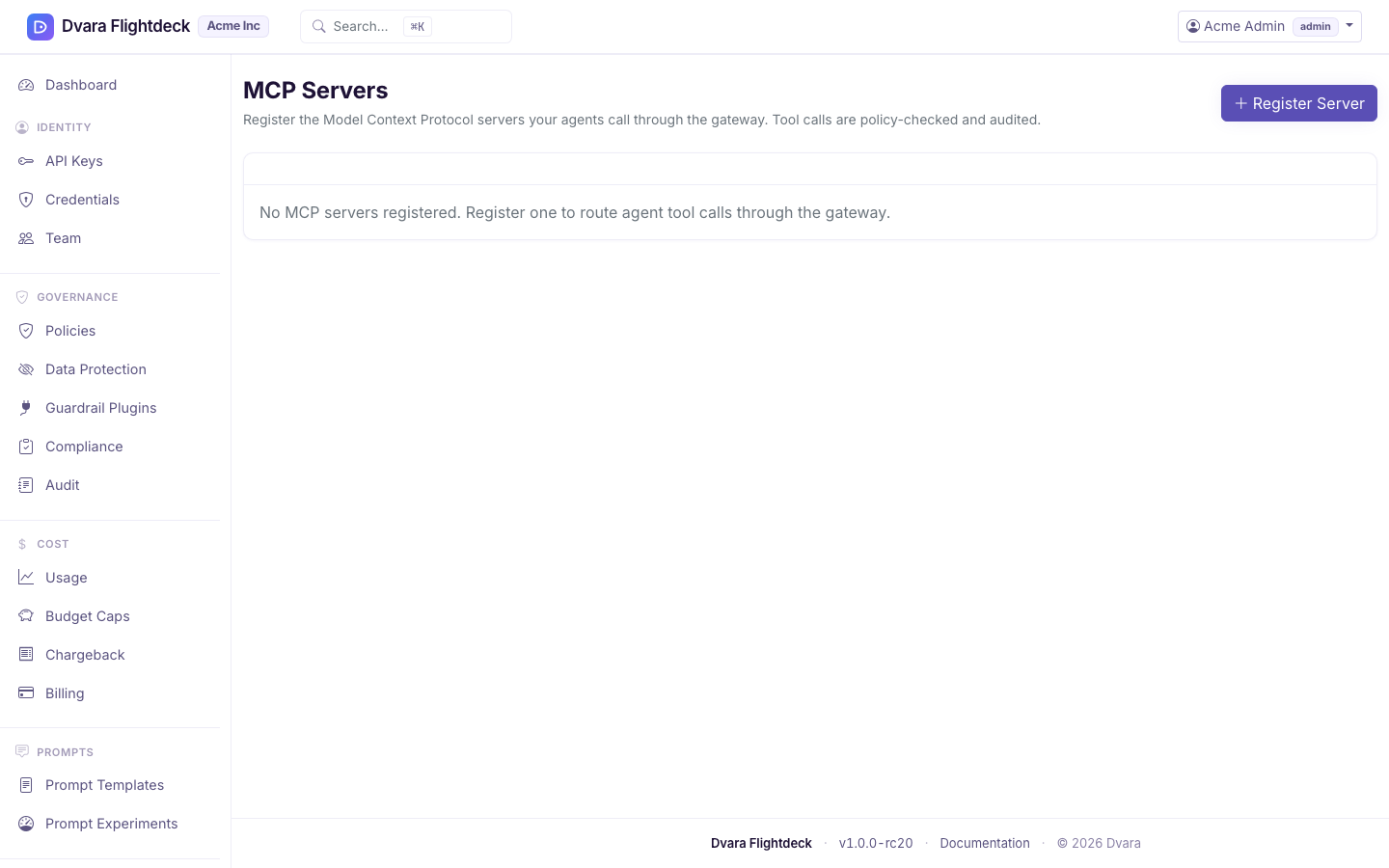
- Open MCP servers → Register server in Flightdeck.
- Fill in a server id (a stable identifier unique within your workspace, e.g.
prod-search), the transport (STREAMABLE_HTTP,SSE,REST, orREST_BRIDGE), the URL where the server speaks MCP, and any credentials the server needs. ForREST_BRIDGE, also provide the OpenAPI spec (and optional auth header) so DVARA can synthesize governed MCP tools from a plain REST API. The URL must be a public endpoint — private, loopback, and cloud-metadata addresses are rejected. - Submit.
For a workspace-owned server, Credential Ref names a credential stored in that workspace; it cannot name a platform secret, vault path, or another workspace's credential. A REST bridge auth header is write-only in the form: after save it appears masked. Leave the mask unchanged to keep the stored value, or enter a new header to replace it. With an encryption master password set, DVARA encrypts the header at rest; otherwise startup warns that it remains plaintext.
The server id is unique per workspace — you can have a server called prod-search even if another customer has one with the same id, with no collision. An id your workspace already uses is refused. From 1.8.4 the refusal shows on the form, naming the id, and what you typed stays, except the REST bridge auth header, which is not sent back because it can hold a token.
The server URL is egress-validated on submit the same way webhook URLs are — non-http(s) schemes, loopback / private / link-local / cloud-metadata IPs are rejected. Tool-sync reflects the upstream's response into your audit trail, so the guard is deliberately strict.
Discover servers from the catalog
If your operator has enabled the MCP discovery catalog, MCP Catalog lets a workspace admin browse a curated set of vetted MCP servers (sourced from the official MCP Registry, a curated list, and the Docker MCP catalog) and register one without typing its details by hand. A remote (REMOTE) entry registers in one click; a PACKAGE or IMAGE entry opens the register form pre-filled so you can supply the deployment specifics. The catalog is consume-only and appears only when the operator has turned it on — if you don't see the menu item, register servers manually above.
Sync the tool catalog
Open the server and click Sync tools. DVARA connects to the server, lists its tools (with their schemas), and caches the catalog for fast lookup. The cached catalog is what your policies match against when you write rules like "deny calls to tool send_payment unless the request includes an approval token."
Re-sync after the server adds, renames, or removes tools — there is no automatic discovery.
Run a health check
Click Health on any server to probe it without firing a real tool call. The result shows the round-trip latency and any error message inline. Use it to verify a new registration before you turn agents loose on it.
Health checks are read-only and not audited.
Watch live tool calls and sessions
Two views, one truth:
- Tool calls — every individual tool invocation, with the server, tool name, session ID, latency, status, response bytes, and whether any PII or policy decision applied. Select a row to see the full call detail.
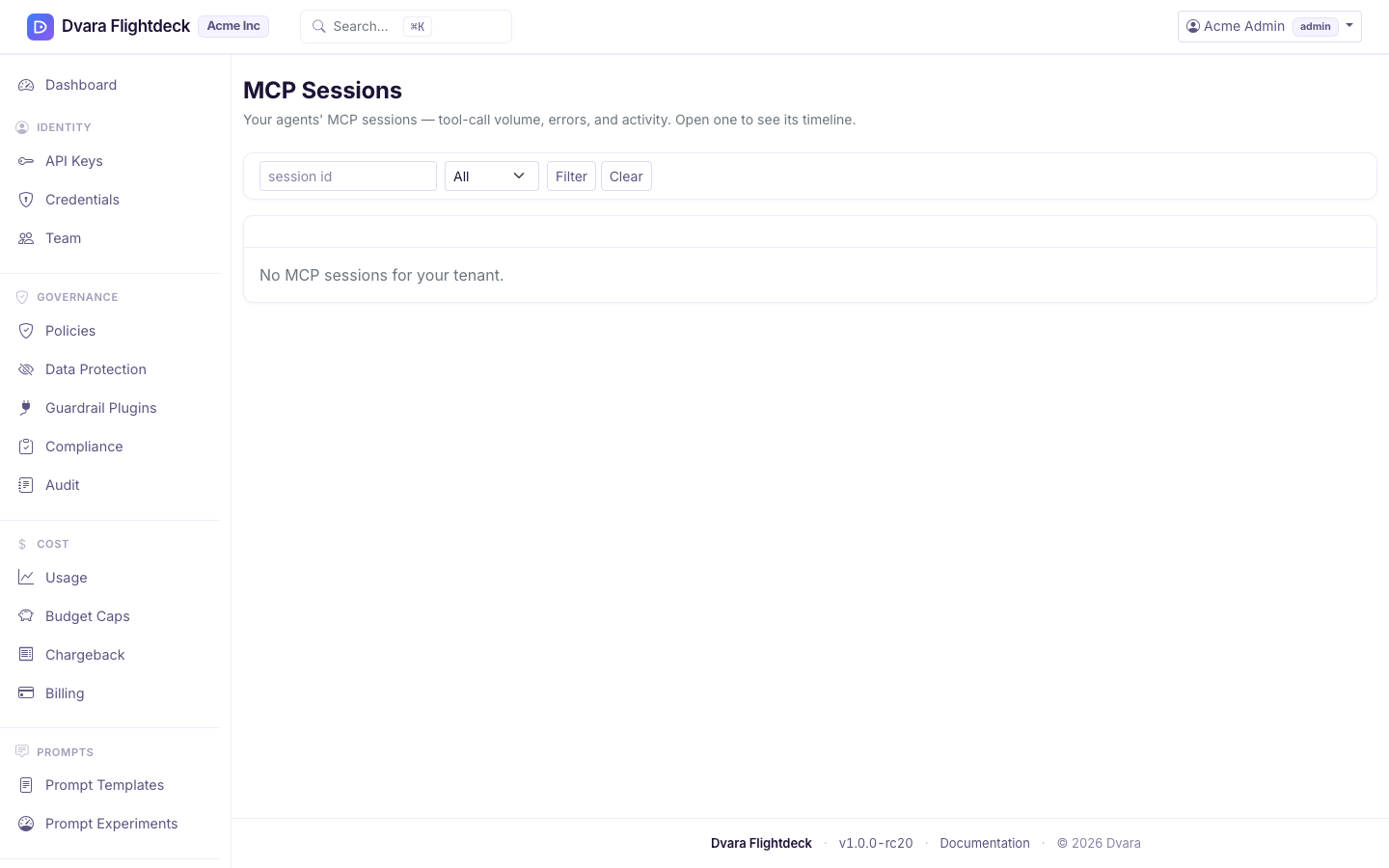
- Sessions — every agent session that has run, with summary metrics (call count, average latency, error rate, total bytes) and a timeline. Select a session to open its timeline.
Both lists are scoped to your workspace and update on a short poll while open. From 1.8.4 a tool call that a policy denied is listed too, with decision DENY and status 403. When the gateway-connected indicator is red, the lists stop updating — the data plane is what populates them.
Kill a runaway session
A session that is looping, leaking budget, or doing something it should not can be terminated immediately from the session detail page. Click Kill session. Future tool calls with that ID in this workspace are rejected; another workspace using the same caller-supplied ID is unaffected.
Kill is admin or developer.
From 1.8.5 a kill stops the session on every plane: its model calls, tool calls and A2A hops, on every Gateway, for 24 hours. A kill stops a session, not an agent: an agent can start a new session ID. To stop an agent, revoke its API key.
A session seen only on the LLM plane, or not reported yet, has no row to kill
from. For it, use the Kill a session by id form at the top of the MCP
Sessions page: enter the X-Session-Id and choose Kill session. The form
kills the session in your own workspace only.
Approve or deny a gated tool call
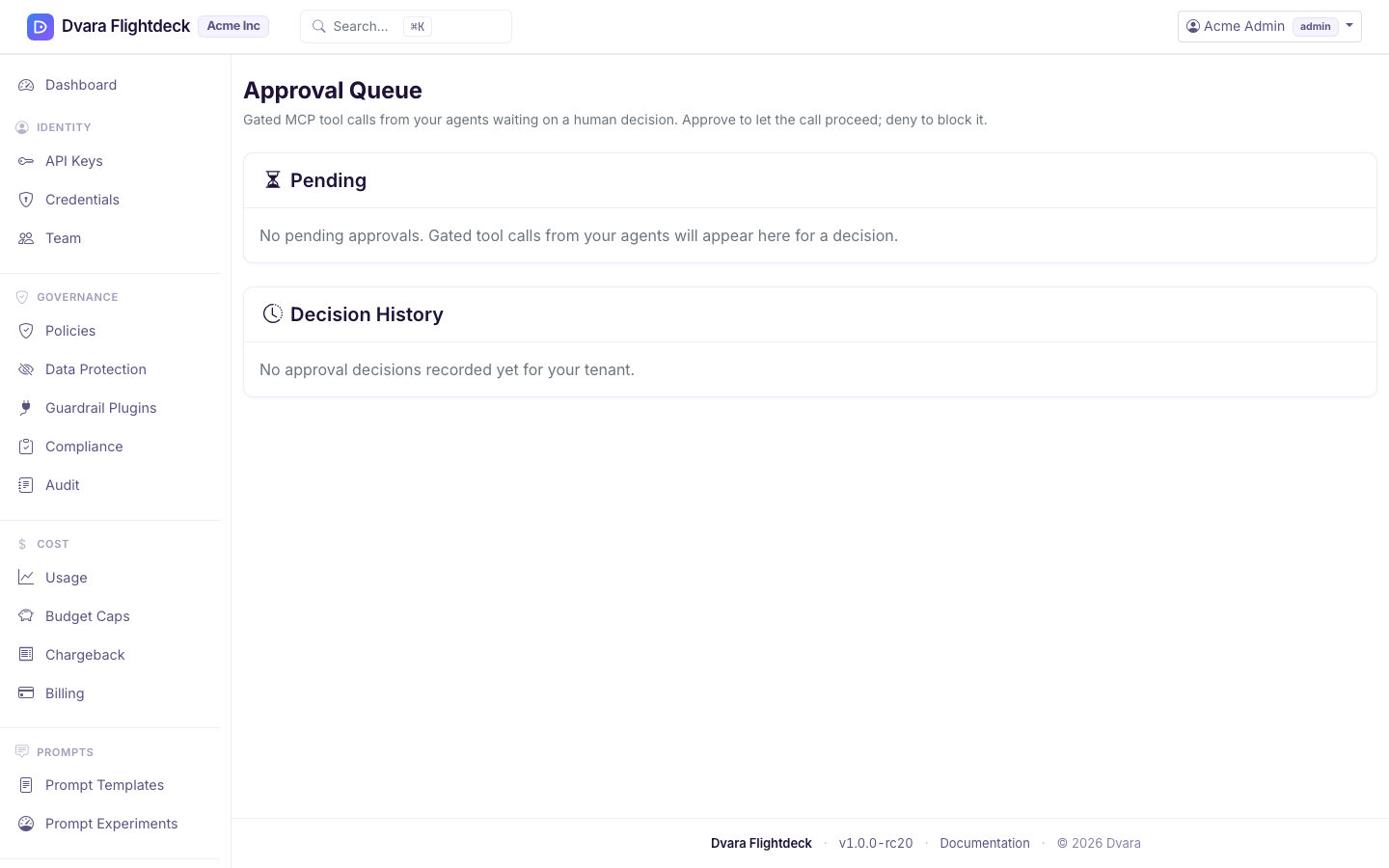
When a tool call lands on an approval rule, the call is held and a row appears in Approvals. Each pending row shows the requesting session, the server, the tool name, and the arguments the agent wants to invoke with.
Click Approve to release the call; click Deny to reject it with an error the agent receives. Both decisions are audited.
Approvals time out automatically — your operator configures the default timeout for the install, and individual rules can override it. A timed-out approval is the same as a denial from the caller's perspective.
Choose which MCP extensions clients may use
MCP clients can ask for optional extensions, such as
io.modelcontextprotocol/tasks. From 1.8.4 a workspace admin sets which ones
the workspace allows on Agents → MCP Extensions. Enter one entry per line or separate entries with
commas:
vendor/nameallows that extension;vendor/*allows every extension from that vendor;vendor/name@2allows only that version.
Leave the list blank to use the gateway default, which allows nothing, or enter
none to allow nothing whatever the default. A malformed entry is refused when
you save. A workspace policy can deny an allowed extension; it can never allow
one the list does not.
DVARA serves no extension yet, so today every extension a client asks for is
refused. The client carries on without it, and each refusal is recorded as
MCP_EXTENSION_DENIED in your audit log. See
Control which MCP extensions a client may use.
From 1.8.5 the MCP Extensions page, and the A2A Delegation page, also show the workspace's size limits, read-only: how large a tool call's arguments and a server's answer may be. Your platform operator sets them, because they bound what the shared Gateway reads for one call. See how large can a tool call and its answer be.
What every action writes to the audit trail
| Action | Audit event |
|---|---|
| Register an MCP server | MCP_SERVER_CREATED |
| Edit a server | MCP_SERVER_UPDATED |
| Delete a server | MCP_SERVER_DELETED |
| Sync the tool catalog | MCP_SERVER_TOOLS_SYNCED |
| Kill a session | MCP_SESSION_KILLED (carries tool_call_count; from 1.8.5 also scope: all_planes) |
| Kill a session by id | AGENT_SESSION_KILLED (from 1.8.5; carries scope: all_planes) |
| Approve or deny a pending tool call | MCP_APPROVAL_RESOLVED (carries action, server_id, tool_name, session_id) |
| Change the MCP extension allow-list | WORKSPACE_MCP_EXTENSIONS_UPDATED |
Health checks and read-only browsing of the activity views are not audited.