Managing your account
Available with no license, in the Development posture. A license adds the MCP and A2A planes, production rights and support — not this feature.
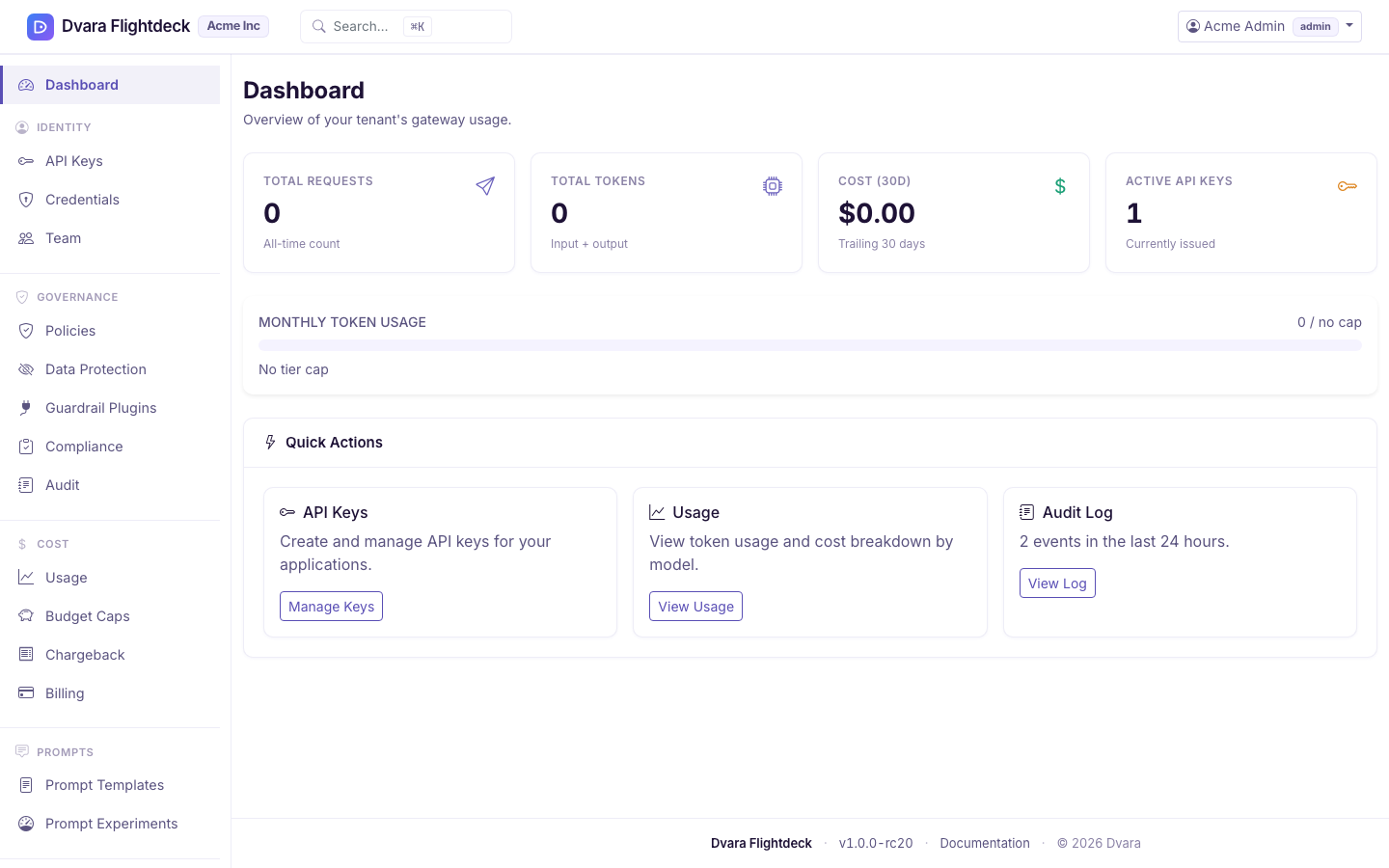
Everything below is self-service in the portal (/portal) after you sign in. Role rules apply — admin has full access within your workspace, developer can create keys, viewer is read-only.
Create your first API key
DVARA never issues an API key automatically — you create them yourself, so a key only ever exists because someone deliberately made it.
- Go to Portal → API Keys, create a key, and copy it. The plaintext key is shown once — store it in your secret manager immediately. Portal-created keys are unrestricted because this form has no scope selector in 1.8.
- Use it as
Authorization: Bearer <key>against your endpoint. See the Quickstart for the first call. - Revoke a key any time (admin only). Revocation is immediate.
Use the Console when you need to restrict a key to one or more LLM operation families. The complete behavior is in Authenticate gateway calls.
Bring your own provider keys (BYOK)
Add your own OpenAI / Anthropic / etc. credentials under Portal → Credentials. They're encrypted at rest and scoped to your workspace. Rotation with a grace-period overlap is supported.
Invite your team
Under Portal → Team (admin only), invite teammates with a workspace role (admin, developer, viewer). Each invitee gets their own setup-link email and sets their own password — the same confirm-by-email step as signup.
Watch usage and cost
Portal → Usage shows token usage and spend for your workspace, with per-model breakdowns (it combines the token-usage and cost-by-model views on one page). Budgets and policies are managed in their own portal sections — see Budgets & chargeback and Workspace policies. For data-protection posture (PII enforcement and guardrails), see Configure PII protection and guardrails.
Billing
Self-managed and managed-hosting installs are licensed annually — billing is handled with your operator or account team, not from the portal.
Closing your account
Closing a workspace is handled by your operator (the team that runs DVARA) — reach out to them.
After the grace period, the workspace and its data are erased. Append-only audit records are retained for compliance; everything else is purged. Export anything you need first.