Invite teammates and manage access
Give each teammate only the workspace access they need. A workspace admin can
invite people, assign workspace roles, and remove access from the DVARA Flightdeck.
Not included in DVARA Open Source.
Before you start
You need the workspace admin role. A developer or viewer who opens the
team page returns to the workspace home page.
Your operator must also configure email delivery. In a production deployment, an invitation is useful only when the invited person can receive its one-time registration link.
Invite a teammate
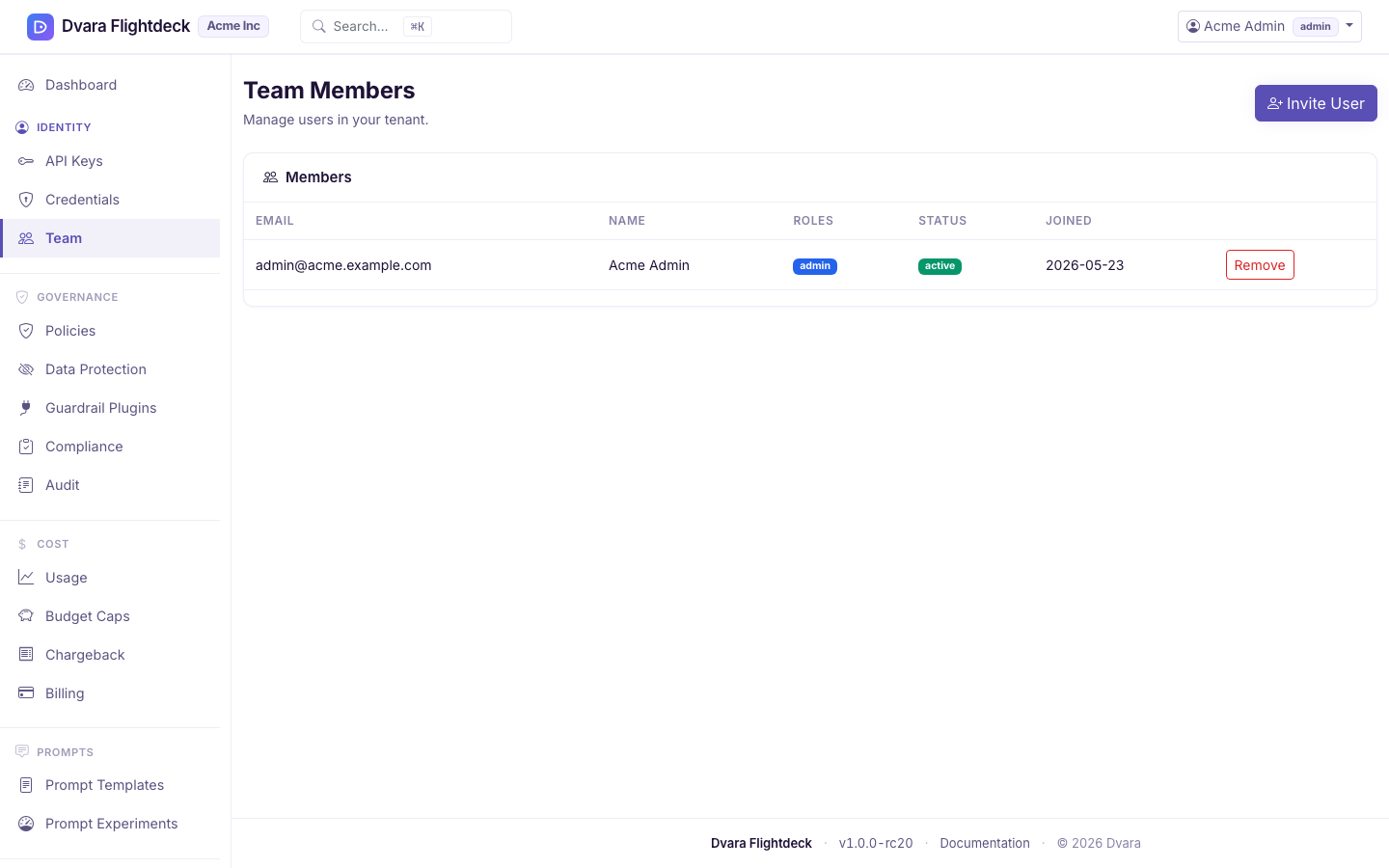
- Open Team in Flightdeck.
- Select Invite member.
- Enter the person's email address and, optionally, their first and last name.
- Select at least one role:
admin,developer, orviewer. - Send the invitation.
DVARA creates the person in the INVITED state and emails a one-time
registration link. The link expires after 7 days. When the person follows
it, they set a password and their status changes to ACTIVE.
Only workspace roles are accepted here. Platform roles, such as owner, must
be managed from the operator surface.
Flightdeck has no resend action in 1.8. Remove the expired invitation from the team list, then invite the same address again to create a new seven-day link.
Verify the invitation
After you submit the form:
- Confirm that the team list shows the email address with status
INVITED. - Ask the person to open the email and complete registration within seven days.
- Confirm that the team list now shows status
ACTIVE. - Open Audit and search for
USER_INVITED.
The invitation audit record contains the invited user, normalized email address, workspace, assigned roles, status, and the admin who sent it. DVARA writes this event when audit storage is available. Accepting the invitation does not emit a separate user-lifecycle audit event in 1.8.
Change a teammate's role
Flightdeck does not edit workspace roles in place in 1.8. Remove the teammate, then invite the same email address with the new role or roles. Removing a person ends their active DVARA sessions, so they must accept the new invitation and sign in again.
If you need uninterrupted access during a role change, ask your operator to manage the account from Flightdeck instead.
Remove a teammate
Open Team, find the teammate, and select Remove. DVARA checks
that the person belongs to your workspace, removes their account, ends their
active sessions, and writes USER_DELETED when audit storage is available.
You cannot remove yourself. Flightdeck does not prevent one admin from removing
another, so confirm that the workspace will still have an admin before you
remove an admin account.
A refused removal says why on the Team page: "You cannot remove yourself." for your own account, and "User not found." for a user who no longer exists or is not in your workspace. From 1.8.4 Flightdeck shows "User not found." where it used to show nothing, and it shows its refusals inline on the page.
After removal, verify that:
- the person no longer appears in the team list;
- their existing browser sessions can no longer use Flightdeck; and
- the audit trail contains
USER_DELETEDwith the user, workspace, and acting admin.
Removing a teammate does not erase their earlier audit history. Those records remain associated with the identity that performed each action.
Switch between workspaces
If you are in more than one workspace, Flightdeck shows a workspace switcher. It lists each accessible workspace as Team / workspace once you belong to more than one team. A platform owner adds you to a team on the team page. Switching changes the workspace in scope; it never changes team membership. You cannot open a workspace in a team you do not belong to.
Understand the audit boundary
| Action | Audit event in 1.8 |
|---|---|
| Invite a teammate | USER_INVITED |
| Accept the invitation | No separate user-lifecycle event |
| Remove a teammate | USER_DELETED |
The audit trail uses HMAC signing and hash chaining to expose changes. See Audit and compliance for retention, verification, and storage conditions.
Close a workspace
Flightdeck's workspace Team page manages people; it does not close the workspace. Follow Close your account or contact the operator responsible for your DVARA deployment.